


Apprenez à créer des présentations avec IA Présentations de Genspark. Recherchez, générez et concevez des diapositives à partir d'instructions simples, puis exportez en PDF, PPTX ou Google Slides.
Mis à jour le 21 oct. 2026
Aperçu
Fonctionnalités clés
FAQ
AI Diapositives
Qu'est-ce que IA Présentations ?
IA Présentations est l'agent de présentation intelligent de Genspark. Au lieu de simplement générer une présentation et de vous la remettre, il construit la présentation autour de vous — en suivant vos besoins, votre contenu et votre marque.
-
Construite autour de vous — Vous avez déjà un modèle ou un style de marque ? Il les respecte. Vous voulez du nouveau ? Il conçoit à partir de zéro.
-
Conversationnelle par conception — Il comprend votre objectif et en discute d'abord avec vous, puis structure et crée la présentation.
-
Un véritable espace de travail de présentation — Votre deck se construit en direct sur un canevas à côté du chat. Pointez n'importe quel élément pour le modifier, mettez en file des lots de modifications, vérifiez les faits, ajoutez des notes d'orateur et présentez avec une console de présentateur.
-
Des Skills expertes, pas seulement des modèles — Appliquez plus de 100 Skills expertes intégrées, ou enregistrez votre propre style comme une Skill réutilisable.
-
Un véritable ordinateur intégré — Il peut réellement exécuter du code, de sorte que l'analyse de données, les calculs et les graphiques sont calculés avec précision plutôt que devinés.
-
Multimédia et conversion de documents — Ajoutez des images générées par IA ou issues du web, et importez des fichiers existants (PDF, Word, Excel, PPT) pour construire à partir d'eux.
En savoir plus sur IA Présentations : https://www.genspark.ai/blog/genspark-ai-slides
Démarrage rapide
Commencez en trois étapes simples :
-
Accédez à IA Présentations
Cliquez sur "IA Présentations" en bas de la page d'accueil de Genspark, ou sélectionnez-le dans le menu "Nouveau" de la barre latérale.
-
Décrivez ce que vous souhaitez créer
Saisissez votre sujet, objectif ou message clé. Vous pouvez également télécharger des documents que l'IA analysera pour en extraire les informations clés. Exemples d'instructions :
Créez une présentation de 10 diapositives sur les tendances des énergies renouvelables en 2024
Créez un pitch deck basé sur mon plan d'affaires téléchargé
Créez une présentation commerciale pour notre nouveau produit SaaS
-
Obtenez votre présentation
IA Présentations effectue automatiquement des recherches, structure, conçoit et génère une présentation complète et visuellement convaincante, en la construisant page par page dans l'espace de travail Slides, juste à côté du chat. Révisez, affinez et exportez au format PDF, PPTX ou Google Slides.
Choisissez votre mode
Avant d'écrire votre instruction, prenez cinq secondes pour régler les modes en haut d'AI Diapositives. Il y a trois choix, et ils font une grande différence sur votre résultat.
Professionnel vs Créatif
Cela définit l'orientation générale du style :
-
Professionnel — Épuré, structuré, orienté business. Idéal pour les propositions commerciales, les rapports internes et les présentations de conseil.
-
Créatif — Plus d'impact visuel, avec des couleurs et des images plus riches. Chaque diapositive est conçue comme un visuel complet, tel un poster. Idéal pour les campagnes de marque, les lancements de produits et les supports marketing.
Règle rapide : présentation à des clients ou des dirigeants → Professionnel ; présentation à des consommateurs → Créatif.
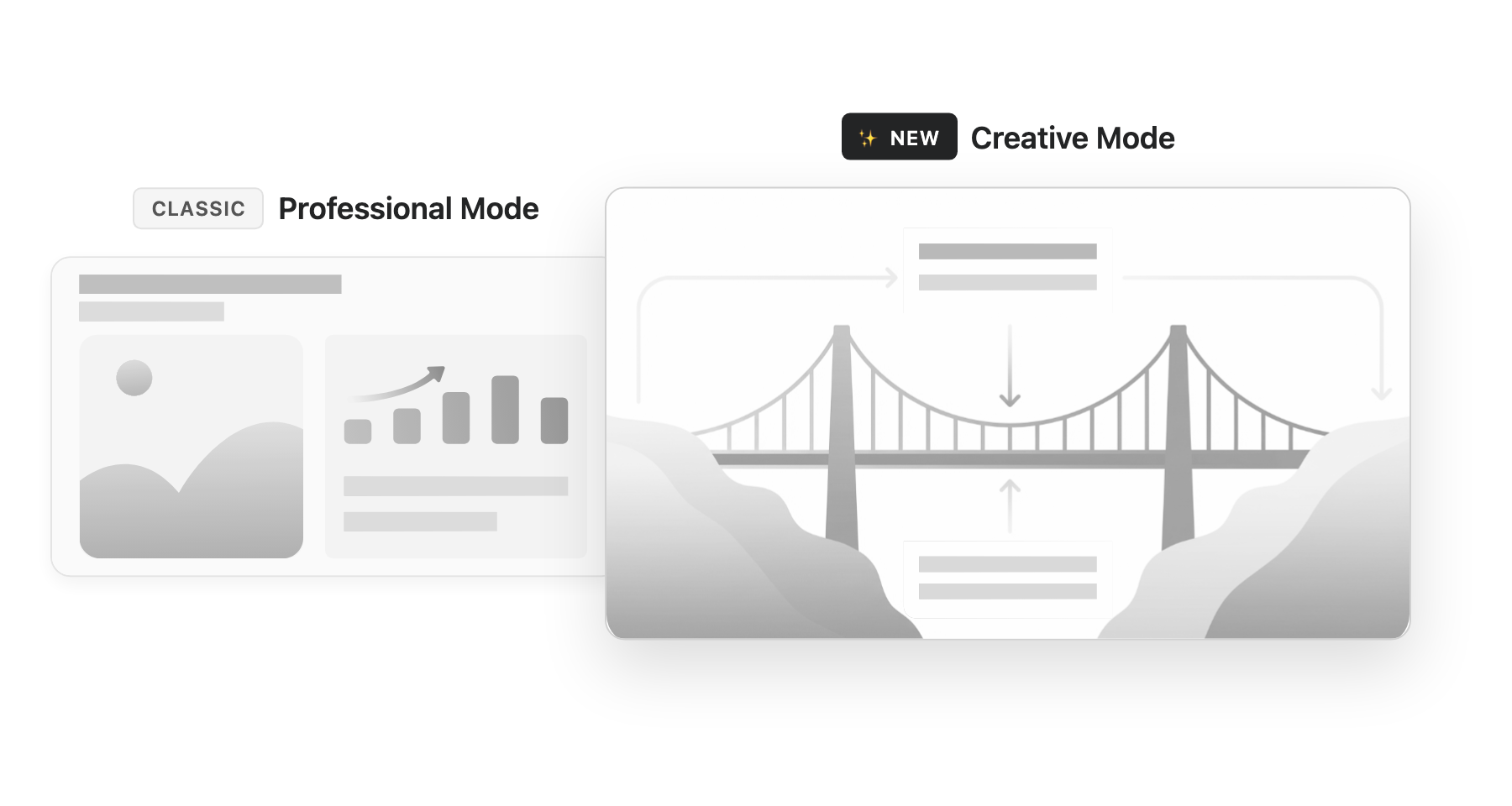
Quelques éléments à connaître sur le Mode Créatif :
-
Il prend en charge plusieurs formats d'image (16:9, 4:3, 1:1, 3:4, 9:16, 21:9), ce qui le rend adapté aux posters, carrousels pour réseaux sociaux, fiches de connaissances et plus encore.
-
Vous pouvez choisir le modèle de génération d'images (par exemple GPT Image 2 ou Nano Banana Pro) et coller des images de référence pour guider le style.
-
Dessiner pour modifier est activé par défaut — marquez n'importe où sur une diapositive avec le stylo, le marqueur ou le cadre, puis décrivez votre modification. L'IA régénère uniquement cette partie tout en conservant le reste intact.
Remarque : Une fois un projet créé, son mode ne peut pas être changé. Pour changer de mode, démarrez un nouveau projet.
Mode Guidé
Par défaut, vous saisissez une instruction et obtenez des diapositives instantanément — rapide et sans effort. Le Mode Guidé adopte une approche différente : l'IA agit comme votre consultant en présentation, vous guidant à travers une consultation structurée avant de créer une seule diapositive.
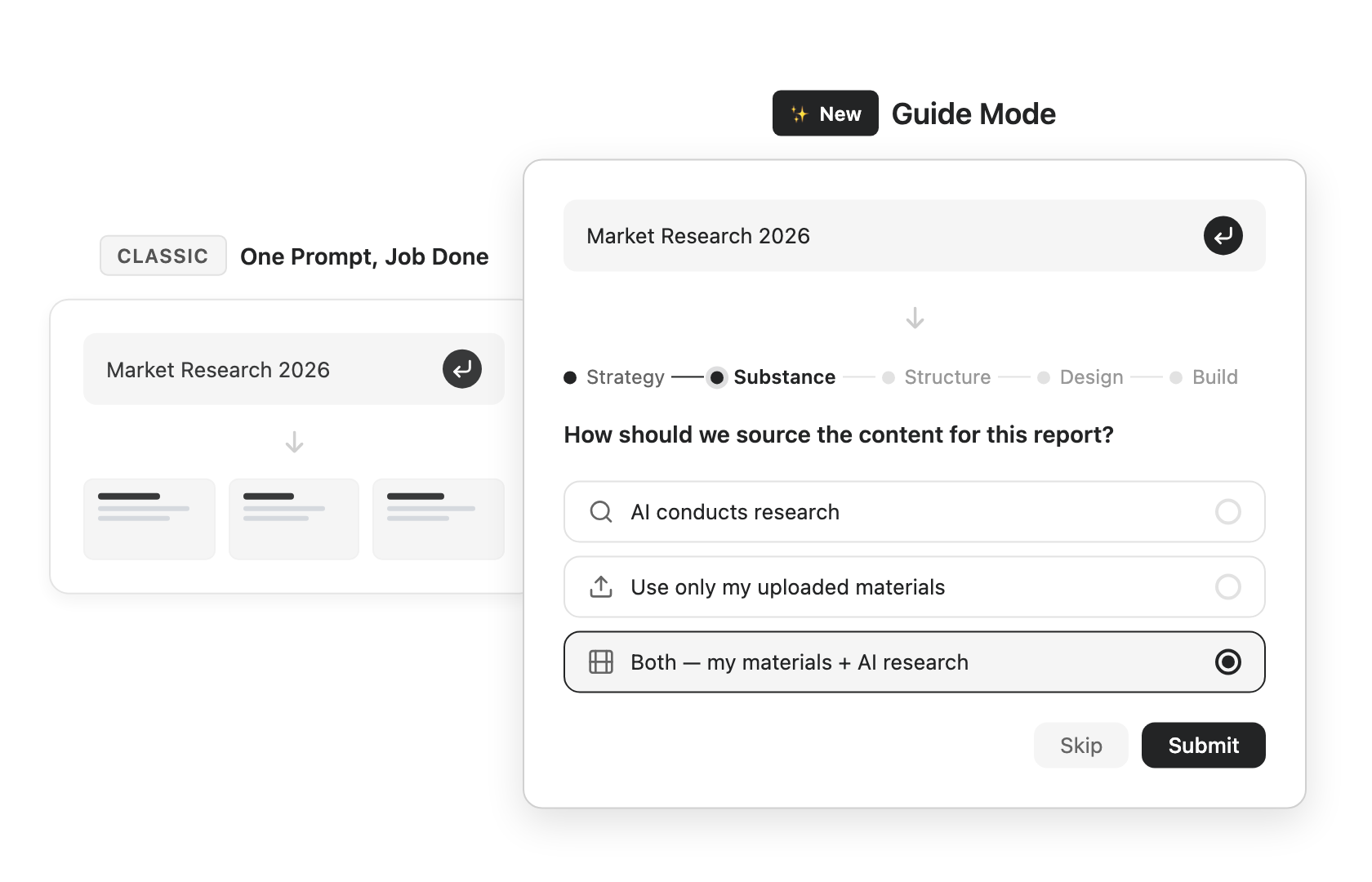
La différence réside dans le rôle qu'il joue. Dans le mode par défaut, l'IA agit comme un exécutant — dès qu'elle comprend votre demande, elle crée la présentation aussi vite que possible. En Mode Guidé, elle agit comme un co-créateur — un mentor professionnel qui continue d'échanger avec vous, suscite des idées et confirme le plan avec vous avant de générer la présentation finale.
Comment choisir :
-
Vous voulez simplement un résultat rapide → laissez le Mode Guidé désactivé.
-
Vous débutez avec IA Présentations, vous construisez quelque chose de complexe ou de formel, ou vous voulez contrôler chaque détail → activez le Mode Guidé.
Standard vs Ultra
Cela définit la qualité du modèle :
-
Standard — Rapide et économique, bien adapté aux présentations du quotidien ; à partir d'environ 10 crédits par page, en utilisant le modèle Genspark Gen-1.
-
Ultra — Le meilleur choix pour les présentations de haute qualité, avec un raisonnement et une production plus puissants ; à partir d'environ 100 crédits par page.
Règle rapide pour les modèles : choisissez Standard pour les présentations du quotidien ou internes, et Ultra pour la meilleure qualité, surtout lorsque la présentation est destinée à des personnes extérieures à votre équipe.
Politiques de modèles en entreprise : si votre organisation restreint les fournisseurs de modèles IA (Team Admin → Connecteurs → « Restreindre les fournisseurs de modèles IA » ; disponible une fois activé pour votre organisation), IA Présentations utilise uniquement des modèles de vos fournisseurs approuvés. Standard exécute Gen-1 lorsque Genspark est approuvé, sauf si Google ou Anthropic est le seul autre fournisseur de modèles IA approuvé ; il utilise alors le modèle de ce fournisseur. Sans Genspark, Standard utilise un modèle approuvé. Si ni Google ni Anthropic n'est approuvé, les options Standard et Ultra n'apparaissent pas, et IA Présentations utilise un autre modèle approuvé ou affiche un message de politique, selon les paramètres de votre administrateur. Les membres n'ont rien à changer.
Rédiger des instructions efficaces
La clé d'une excellente présentation est de rédiger votre instruction en partant du résultat. Une instruction vague comme « fais une présentation » laisse l'IA deviner à qui elle s'adresse, quelle doit être sa longueur et ce qu'elle doit couvrir.
Commencez par trois éléments essentiels
Ouvrez votre instruction avec trois éléments :
-
Audience — pour qui est-ce ? (Clients ? Équipe ? Dirigeants ?)
-
Longueur — environ combien de diapositives ?
-
Structure — comment le contenu doit-il être organisé ?
Au lieu de « fais une présentation marketing », écrivez quelque chose comme :
Construisez une présentation de stratégie marketing pour la génération Z, 5 diapositives, la conclusion d'abord, couvrant l'analyse de marché, le profil de l'audience cible et la stratégie marketing
Plus vous êtes précis, plus le résultat est net.
Vous ne savez pas comment le formuler ? Activez simplement le Mode Guidé et laissez le reste à l'IA — elle vous guidera et clarifiera ce dont vous avez besoin.
Ajoutez plus de détails lorsque c'est utile
-
Source de données — « utilise les données de 2024 », « cite des sources faisant autorité »
-
Ton — « professionnel business », « jeune et énergique », « minimaliste »
-
Style de référence — collez une capture d'écran d'une présentation que vous aimez
-
Vos propres fichiers — glissez un PDF, Word, Excel ou PPT et construisez à partir de lui
Modèles d'instructions pour les scénarios courants
-
Proposition commerciale — « Construis une proposition commerciale de [votre entreprise] à [entreprise cliente], [N] diapositives, la conclusion d'abord, en mettant l'accent sur la valeur du produit pour le client. »
-
Rapport interne — « Construis un rapport de bilan trimestriel sur [sujet], [N] diapositives, structuré en état actuel, réalisations, problèmes et plan du trimestre suivant. »
-
Support de formation — « Construis une présentation de formation sur [sujet], [N] diapositives, pour débutants, avec un cas pratique par chapitre. »
Slide Skills
Les Slide Skills sont le moyen le plus puissant d'AI Diapositives pour obtenir des présentations de qualité experte et garder votre style cohérent. Les Skills remplacent l'ancienne idée des modèles — et vont bien au-delà.
Qu'est-ce qu'une Skill ?
Un modèle traditionnel ne réutilise qu'une apparence visuelle. Une Skill réunit la réflexion experte + le design. Elle indique à l'IA non seulement à quoi la présentation doit ressembler, mais aussi comment réfléchir, comment organiser le contenu et comment construire l'argumentaire. Imaginez-la comme la manière de travailler d'un expert, conditionnée pour être réutilisée.
Utilisez les Skills intégrées
Genspark est livré avec plus de 100 Skills expertes, couvrant un large éventail de scénarios de travail — Stratégie d'entreprise, Vente B2B, Formation professionnelle, Recherche académique, Marketing, Données et KPI, Levée de fonds, Conseil, Gestion de produit et plus encore.
-
Sur l'écran d'accueil d'IA Présentations, parcourez la bibliothèque de Skills sous le champ de saisie. Basculez entre les onglets À la une et de catégories pour explorer.
-
Cliquez sur la Skill que vous souhaitez appliquer.
-
Saisissez votre instruction — l'IA génère la présentation en suivant l'approche experte de cette Skill.
Avec une Skill appliquée, la structure, le raisonnement et le style visuel suivent tous la manière dont un expert procéderait réellement : une proposition commerciale adopte le cadrage d'un directeur des ventes, une analyse stratégique utilise les cadres d'un consultant.
Enregistrez votre propre Skill
Au-delà de la bibliothèque intégrée, vous pouvez enregistrer votre propre style comme une Skill réutilisable — particulièrement utile pour réutiliser un modèle de marque au sein de votre équipe. Vos Skills enregistrées apparaissent dans l'onglet Mes skills.
Le cas le plus courant est que vous avez déjà votre propre modèle PowerPoint ou PDF. Ouvrez la boîte de dialogue Nouvelle Skill depuis la bibliothèque de Skills et choisissez par où commencer :
-
Enregistrer ma présentation comme modèle — téléchargez un PowerPoint ou un PDF pour transformer votre présentation existante en une Skill réutilisable. C'est la voie qu'empruntent la plupart des gens.
-
J'ai déjà un package de compétence — importez une Skill au format
.zipque quelqu'un a partagée avec vous. -
Je pars de zéro — construisez une Skill personnalisée depuis le début.
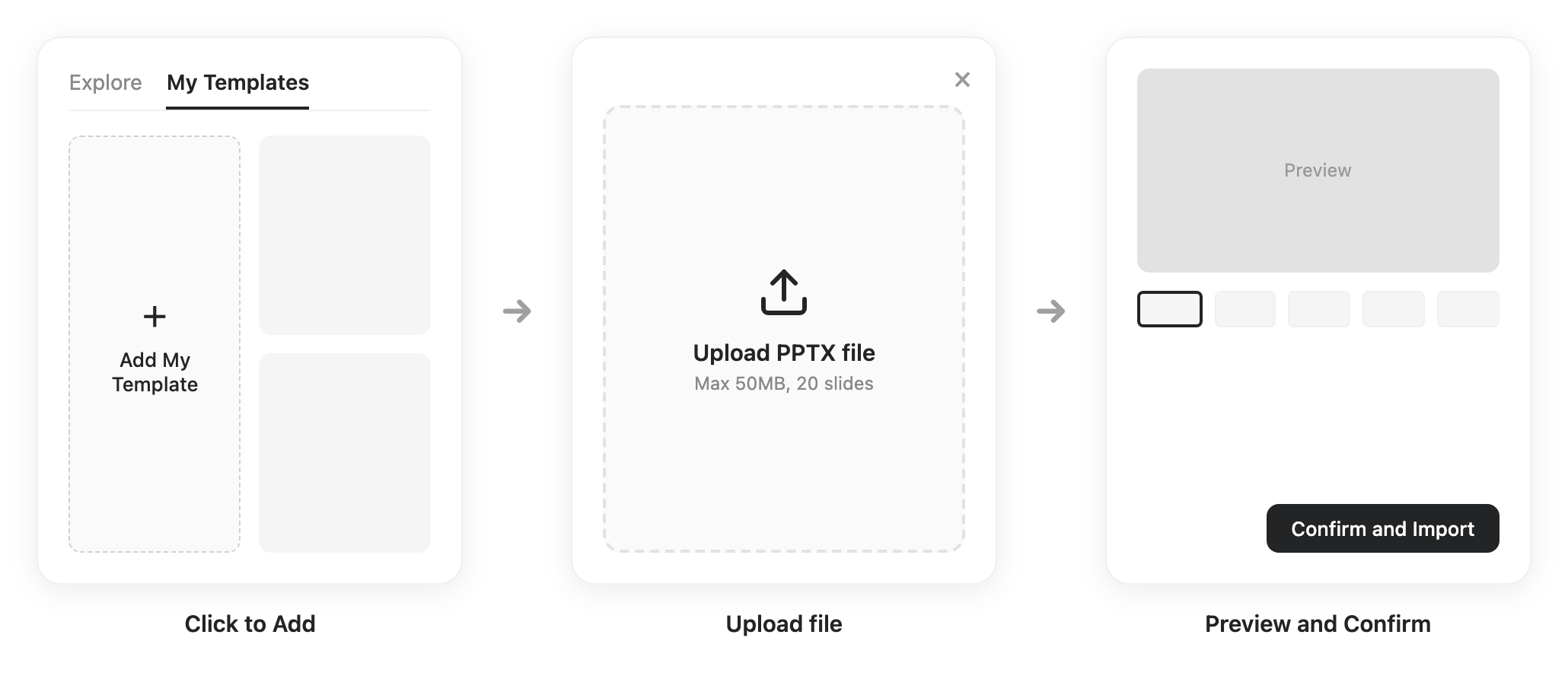
Vous pouvez aussi enregistrer une présentation sur laquelle vous travaillez actuellement : cliquez sur le menu ⋮ en haut de l'espace de travail → « Enregistrer en tant que Skill ».
Pour le travail avec les clients : vous pouvez faire de même avec la marque d'un client — recherchez ses couleurs et son style, enregistrez-les comme une Skill, et appliquez-la chaque fois que vous créez une présentation pour lui. C'est une petite touche qui fait que les clients se sentent compris. Pour les couleurs de marque, joignez le modèle de marque du client ou utilisez une Skill enregistrée, puis ouvrez une diapositive pour vérifier la palette avant de partager la présentation.
Réutilisez un projet à la volée : Vous pouvez aussi démarrer un nouveau projet, coller le lien d'un projet dont vous aimez le style, et demander à l'IA de l'utiliser comme base pour votre nouvelle présentation.
Partagez une Skill
Chaque Skill qui vous appartient dispose d'un panneau Partager — partagez-la comme un document, avec un seul lien, au lieu d'exporter un .zip et d'envoyer des fichiers :
-
Ouvrez l'une de vos Skills et cliquez sur Partager.
-
Invitez des personnes précises par e-mail, ou réglez l'Accès général sur « Toute personne disposant du lien » et copiez le lien.
Les destinataires peuvent prévisualiser la Skill et importer leur propre copie. Vous gardez le contrôle : retirez une personne ou désactivez le lien à tout moment — les copies déjà importées restent la propriété de leurs détenteurs.
Compétences d'équipe : publiez pour toute votre organisation
Le partage de personne à personne diffuse une Skill un collègue à la fois. Les Compétences d'équipe la publient pour tout le monde d'un coup, afin que toute votre équipe construise ses présentations d'une seule manière cohérente — le cadre de proposition de l'entreprise, le style de marque d'un département, un format de rapport peaufiné pendant des années. Un nouvel employé peut créer une présentation soignée et fidèle à la marque dès son premier jour. Disponible avec les plans Team et Enterprise.
-
Membres — ouvrez votre Skill, cliquez sur Partager et réglez l'Accès général sur « Organisation ». Cela soumet la Skill à l'examen des administrateurs.
-
Administrateurs — examinez les soumissions dans Team Admin → Compétences et approuvez ou rejetez (avec un motif). Des notifications par e-mail et dans l'application font avancer le cycle des deux côtés.
-
Une fois approuvée, la Skill apparaît dans l'onglet « Compétences d'équipe » de la galerie de Skills pour chaque membre et s'active automatiquement — aucun import nécessaire. Lorsque l'auteur la met à jour, tout le monde reçoit la dernière version.
Graphiques et visualisation de données
Les présentations calent souvent sur les diagrammes — les flux de processus paraissent inégaux, les organigrammes s'emmêlent, et les graphiques de données impliquent un détour par Excel. AI Diapositives gère tout cela en interne, et comme il exécute réellement du code, les chiffres derrière vos graphiques sont calculés avec précision.
Les graphiques que vous pouvez générer directement
-
Flux de processus métier — de la commande à la livraison, parcours utilisateurs
-
Organigrammes — hiérarchies claires
-
Analyse matricielle 2x2 — positionnement concurrentiel, priorisation
-
Graphiques en entonnoir — entonnoirs de vente et de conversion
-
Diagrammes de Gantt et chronologies — calendriers de projet, planification de jalons
-
Graphiques de données — barres, lignes, secteurs, radar et plus encore
Ce ne sont que les types les plus courants — pratiquement tout graphique auquel vous pensez, IA Présentations peut le produire.
Comment les générer
Indiquez directement ce que vous voulez dans votre instruction :
Construisez un plan de lancement de produit de 10 diapositives. Une diapositive doit comporter une analyse concurrentielle 2x2 (par prix et fonctionnalité), et une autre un entonnoir de croissance des utilisateurs.
Vous pouvez aussi confier un fichier de données à l'IA et lui demander de le visualiser :
Utilisez cette feuille de calcul des ventes pour créer un graphique en lignes de tendance mensuelle, un graphique en barres comparatif par gamme de produits et une carte de chaleur de répartition régionale
Vous ne savez pas quel graphique convient ? Demandez simplement — « Quel est le meilleur graphique pour ce contenu ? » — et laissez l'IA en recommander un. Elle choisit souvent le type le plus adapté, parfois un auquel vous n'auriez pas pensé.
Affiner vos diapositives
Votre deck vit dans l'espace de travail Slides : une barre de plan sur la gauche affiche chaque diapositive d'un coup d'œil, la diapositive en cours occupe le centre de la scène, et le chat reste juste à côté — pour que vous puissiez parler à l'IA et voir chaque changement s'appliquer en temps réel. Au-dessus de la diapositive, une barre d'outils bascule entre trois façons de travailler : Sélectionner, Dessiner et Modifier.

Pointez ce que vous voulez modifier
En mode Sélectionner, cliquez sur n'importe quel élément d'une diapositive — un titre, un paragraphe, une image, un graphique. L'élément s'attache à la zone de chat, étiqueté par type ; décrivez ce que vous voulez, et l'IA modifie exactement cet endroit tout en conservant le reste du design intact.
Annotez tout le deck, envoyez en une fois
Passez en revue votre deck comme vous parcourriez un brouillon imprimé. Passez à Dessiner, puis entourez des éléments avec le Stylo, surlignez avec le Marqueur ou tracez un Cadre autour d'une zone — et notez une brève instruction sur chaque marque. Les annotations restent en place lorsque vous feuilletez les pages et se regroupent dans la File de modifications près de la zone de chat. Une fois que vous avez tout annoté, cliquez une seule fois sur « Envoyer N modifications » : l'IA traite l'ensemble du lot pendant que vous allez prendre un café ou rejoignez votre prochaine réunion, et vous revenez examiner les résultats en une seule passe.
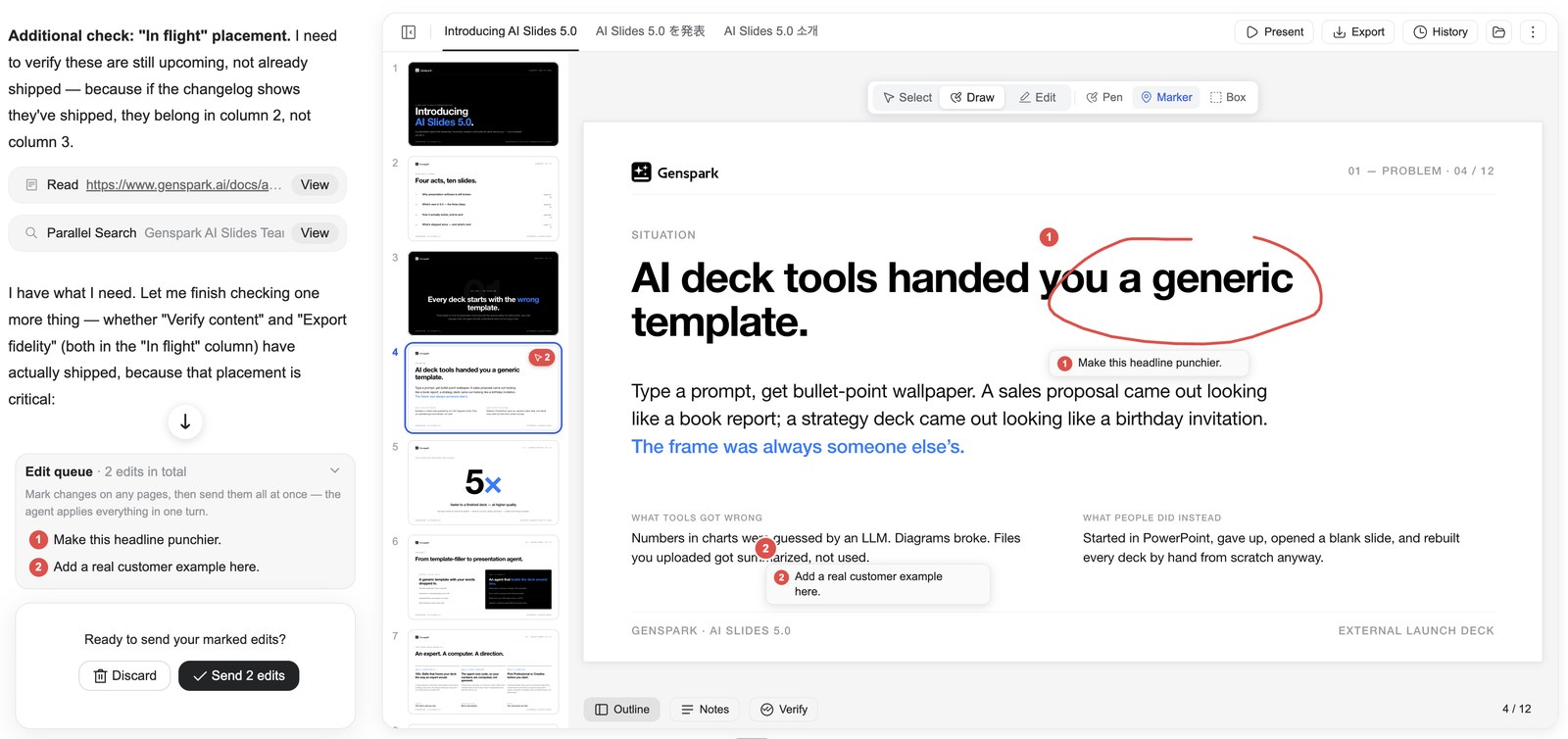
Vous avez changé d'avis sur une marque ? Retirez-la de la file avant l'envoi, ou cliquez sur « Abandonner » pour effacer la page en cours ou toutes les pages.
Édition IA
La barre d'outils propose aussi des perfectionnements IA en un clic. Les options disponibles dépendent de votre mode :
-
Mode Professionnel — Corriger la mise en page (détecte et corrige les chevauchements, les débordements et les désalignements) et Affiner le Contenu (améliore la logique et la mise en page tout en respectant le style actuel).
-
Mode Créatif — Enrichir le contenu, Simplifier le contenu et Repenser la mise en page.
L'éditeur intégré — contrôle manuel complet
Parfois, vous ne voulez pas demander à l'IA — vous voulez simplement attraper ce titre et le déplacer vous-même. Passez en mode Modifier dans la barre d'outils et la diapositive devient directement éditable, directement sur le canevas : pas de changement de page, le chat et l'IA restent à vos côtés, et les modifications manuelles ne consomment pas de crédits.
-
Travaillez avec les éléments comme un outil de design — cliquez pour sélectionner, glissez pour déplacer, utilisez les poignées pour redimensionner et faire pivoter. Faites glisser un rectangle de sélection pour sélectionner plusieurs éléments, puis alignez-les, distribuez-les ou groupez-les, et réorganisez les calques (avancer / reculer). Faites un clic droit sur n'importe quel élément pour couper, copier, coller et dupliquer.
-
Formatez le texte sur place — double-cliquez dans n'importe quel texte et tapez. La barre d'outils flottante couvre la police, la taille, la couleur, le gras/italique/souligné/barré, l'alignement, la hauteur de ligne et l'espacement des lettres.
-
Affinez les images — remplacez une image, recadrez-la librement ou selon une forme ou un ratio, arrondissez ses coins — ou ouvrez Changer le focus et faites glisser un point sur une miniature de la photo originale pour choisir exactement quelle partie reste dans le cadre.
-
Gérez les pages depuis le rail — faites glisser les miniatures pour réorganiser ; faites un clic droit sur une page pour ajouter, dupliquer, copier, coller ou supprimer des diapositives.
-
Modifiez les notes du présentateur — tapez directement dans le panneau Notes pendant que vous éditez.
-
Annulez n'importe quoi — annulez toute action en une seule étape (et rétablissez tout aussi facilement), et le panneau Historique conserve des instantanés complets des versions ; les modifications manuelles et les modifications par l'IA partagent le même historique. Les modifications sont enregistrées automatiquement, et si le document change pendant que vous éditez — par exemple, l'IA termine une modification — la version la plus récente vous sera présentée et vous choisirez comment procéder, sans écrasement silencieux.
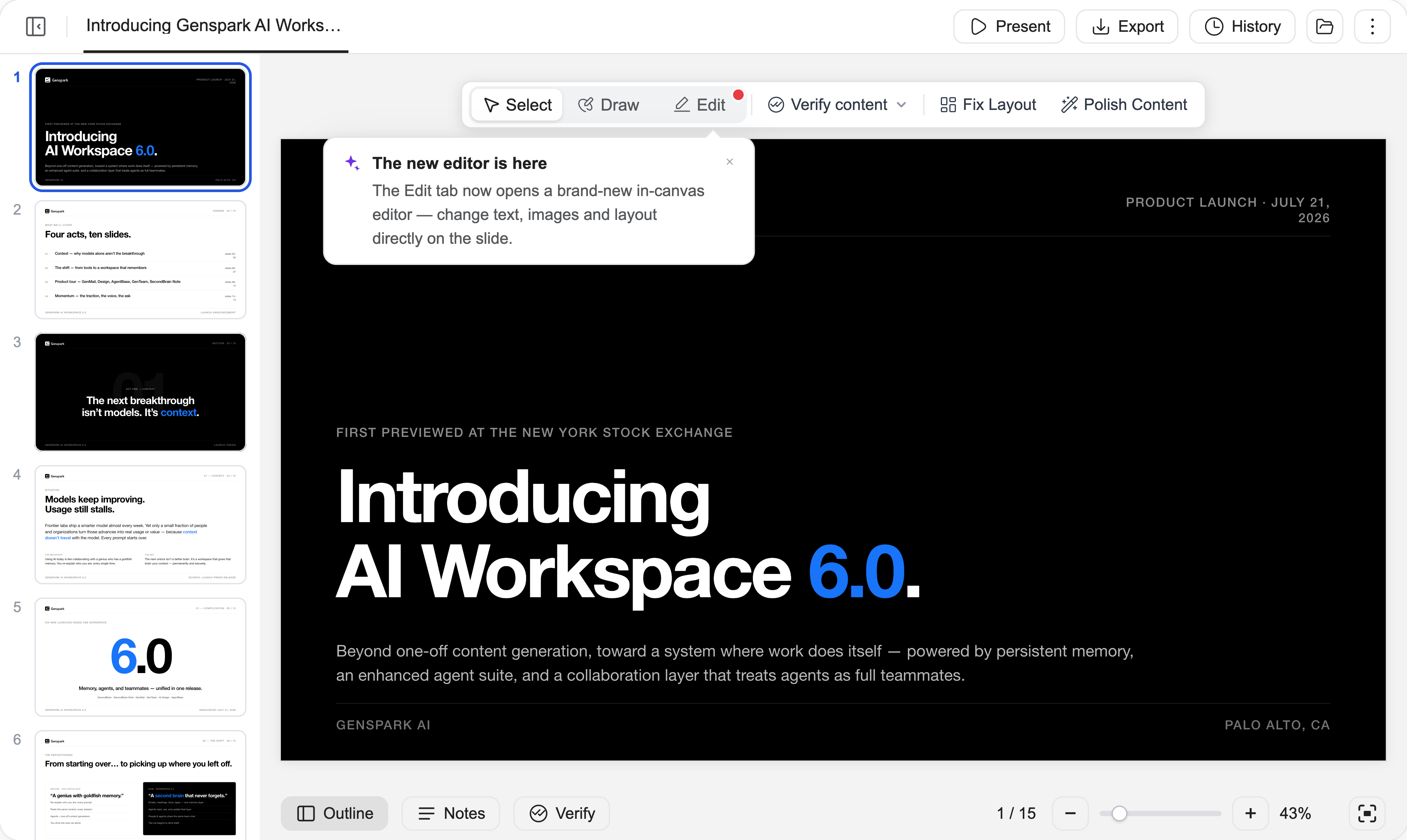
(L'éditeur intégré est disponible uniquement en Mode Professionnel)
Vérifier le contenu
Avant l'envoi d'un deck important, faites vérifier par l'IA chaque chiffre et chaque affirmation qu'il contient — confrontés au web ou aux fichiers que vous avez importés :
-
Cliquez sur « Vérifier le contenu » dans la barre d'outils et choisissez « Vérifier cette page » ou « Vérifier l'ensemble du deck ».
-
L'IA recoupe les faits, les chiffres, les sources et les calculs, corrige ce qui est erroné et laisse une marque de vérification sur chaque diapositive vérifiée, avec des liens de référence.
-
Consultez les marques pour voir ce qui a été vérifié et comment. Lorsque vous exportez au format PPTX, l'historique de vérification est inscrit dans les notes de la diapositive, de sorte que toute personne qui reçoit le fichier voit les preuves derrière chaque chiffre.
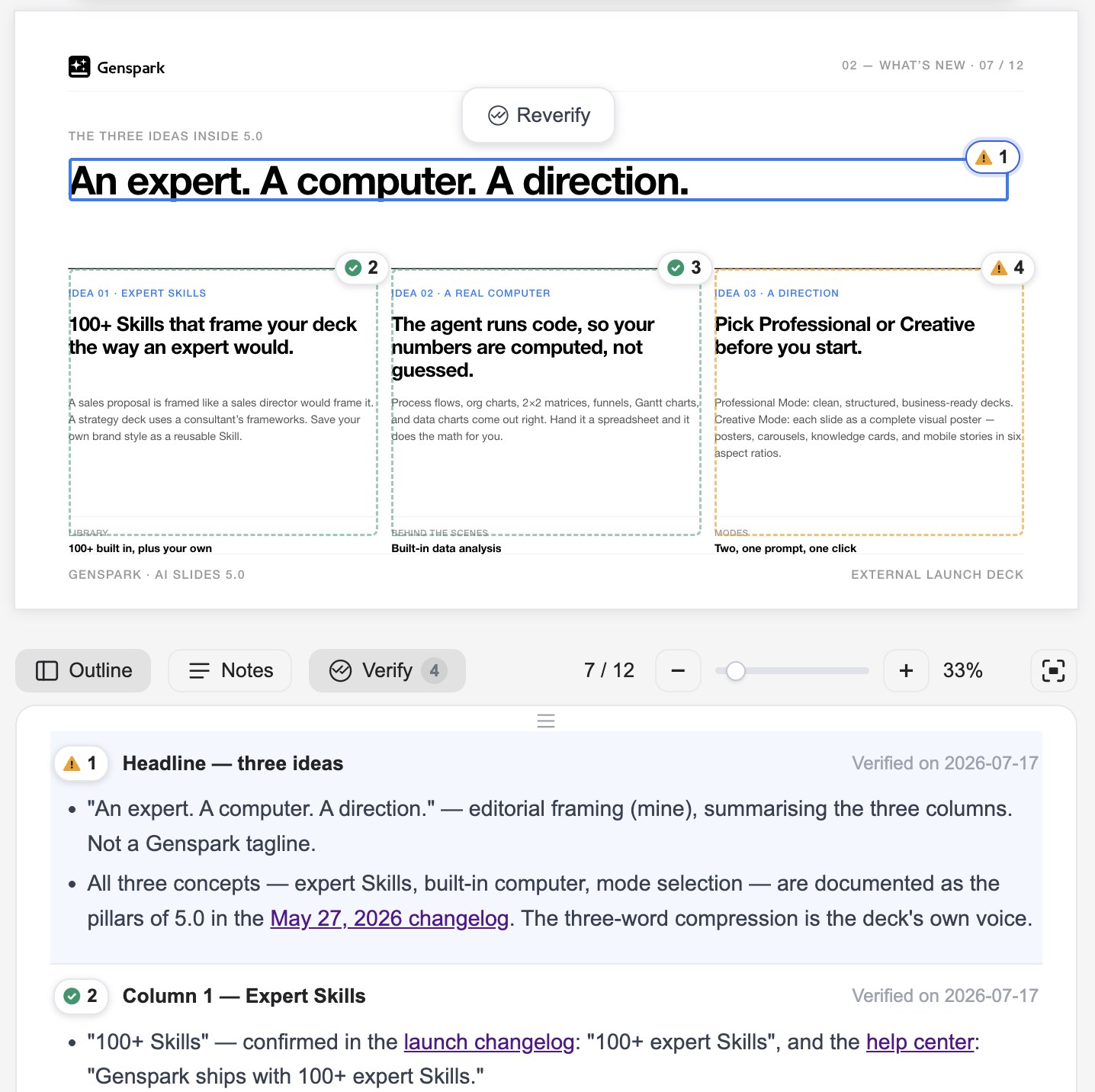
Cette étape est particulièrement précieuse pour les propositions commerciales et les rapports, où des données solides comptent le plus. Un flux fiable est : instruction simple → génération rapide → vérification → résultat net.
Présenter, exporter et partager
Notes d'orateur
Une fois le deck prêt, peaufinez votre prise de parole. Ouvrez le panneau Notes depuis la barre d'outils inférieure pour lire et modifier les notes d'orateur de chaque diapositive — ou faites-les rédiger par l'IA : cliquez sur « Ajouter des notes » (pour cette diapositive ou pour toutes les diapositives), et l'IA commence par poser quelques questions sur l'occasion, le public et le ton, puis rédige des notes adaptées à vos réponses.
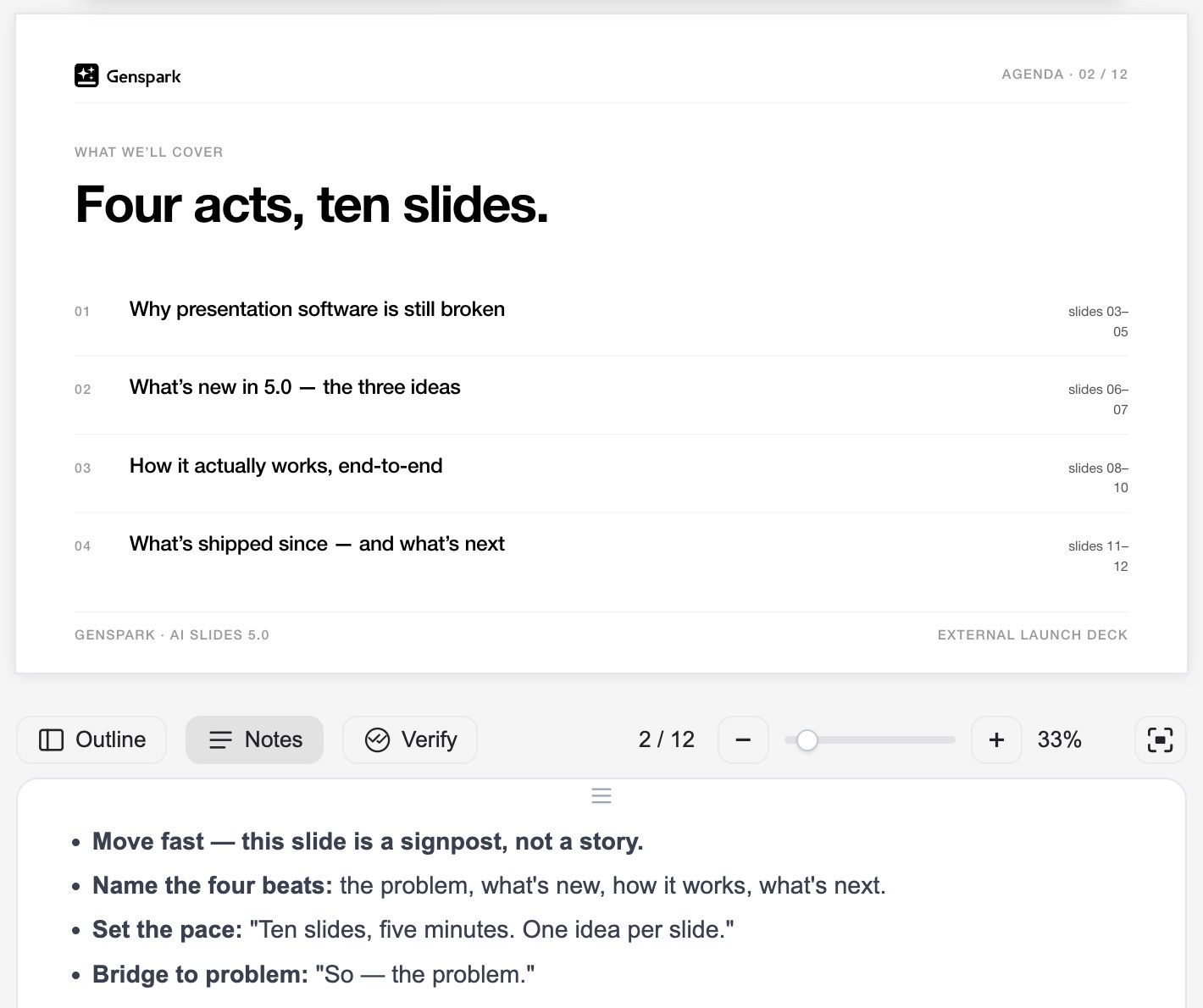
Les notes sont incluses lorsque vous exportez au format PPTX, de sorte que toute personne à qui vous confiez le fichier peut elle aussi le présenter sans accroc.
Présenter en ligne
Présentez vos diapositives directement dans le navigateur, sans aucun téléchargement :
-
Cliquez sur « Présenter » en haut de l'espace de travail.
-
Choisissez « Depuis le début » ou « Depuis la diapositive actuelle ».
-
Pendant la présentation, utilisez « Dessiner sur la page » pour entourer et souligner des éléments en direct pour votre public.
Mode présentateur
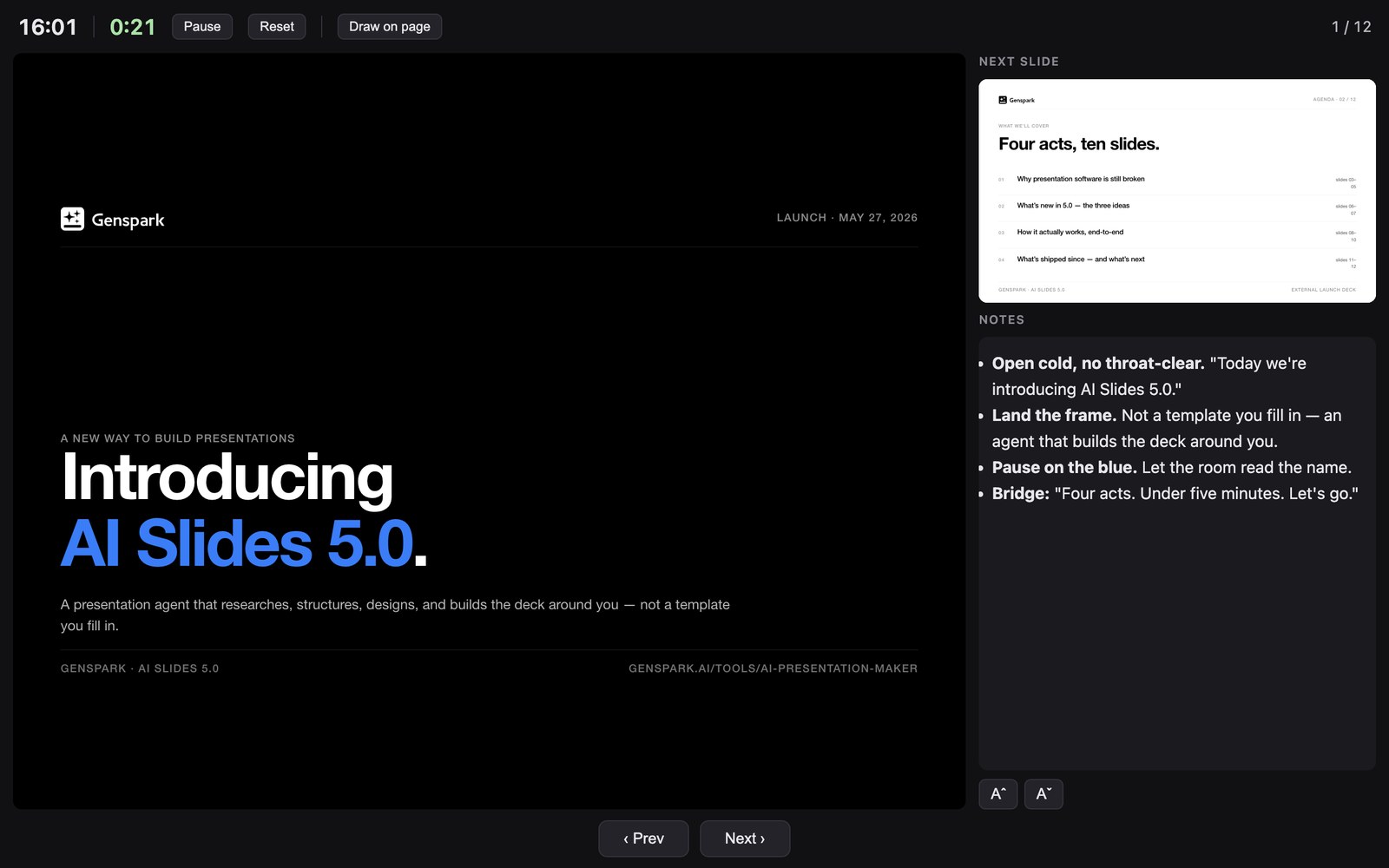
Pour une configuration scénique complète, cliquez sur « Présenter » → « Mode présentateur ». Une console de présentateur s'ouvre dans sa propre fenêtre avec la diapositive en cours, la diapositive suivante, vos notes et un minuteur — tandis que la fenêtre du public n'affiche que des diapositives épurées. Déplacez la fenêtre du public vers le projecteur ou l'écran partagé, passez-la en plein écran et pilotez tout le spectacle depuis votre console ; votre curseur reste synchronisé sur les deux affichages.
Exporter
Téléchargez votre présentation au format PDF, PPTX ou Google Slides (disponible pour les utilisateurs Plus, Pro, Team et Enterprise) :
-
Ouvrez votre présentation, puis cliquez sur « Exporter » dans la rangée d'actions à droite de l'en-tête de la présentation. Exporter n'apparaît que lorsqu'une présentation est ouverte et modifiable — un aperçu intégré ou une vue de partage anonyme ne comporte pas de bouton Exporter.
-
Dans la boîte de dialogue « Exporter les diapositives », choisissez un Format - PDF, PPTX ou Google Slides - et définissez une plage de pages : Toutes les pages, ou Plage personnalisée avec De/À. L'exportation reste désactivée si la plage n'est pas valide.
Une règle de décision rapide :
-
Vous devez encore la modifier → exportez en PPTX vers PowerPoint
-
Vous l'envoyez directement à quelqu'un → exportez en PDF
-
Vous collaborez en équipe → exportez vers Google Slides
Créer une copie
Créez une copie complète et indépendante de votre présentation sous forme de nouveau projet — utile pour adapter des diapositives à un autre client, traduire dans une autre langue ou créer une variante sans affecter l'original. Cliquez sur le menu ⋮ en haut de l'espace de travail → « Créer une copie », ou dites simplement à l'IA « crée une copie » dans la conversation.
Partager
Partagez votre présentation via le partage de projet de Genspark :
-
Ouvrez les options de partage du projet.
-
Invitez des collaborateurs par e-mail, ou changez l'accès général en « Toute personne avec le lien ».
-
Si vous choisissez « Toute personne avec le lien », sélectionnez votre mode de partage : Partage de présentation — diapositives finales uniquement ; le processus de création n'est pas inclus.
-
Partage de projet — inclut le projet complet et le processus de création.
Modifier dans Canva ou Figma
Vous voulez plus de contrôle sur la conception ? Exportez vos diapositives et continuez l'édition dans Canva ou Figma pour une personnalisation avancée.
En savoir plus : Guide d'édition externe
Astuces et économie de crédits
Planifiez pour des mises en page propres et équilibrées
Vous voulez des diapositives d'aspect professionnel ? Planifiez la structure de votre contenu avant de générer. Commencez par un plan et maintenez un volume d'informations cohérent par diapositive. Si une diapositive semble trop chargée, répartissez-la sur plusieurs diapositives — vous pouvez toujours mettre la génération en pause et ajuster au fur et à mesure. Essayez :
Créez d'abord un plan complet, déterminez le contenu de chaque diapositive et maintenez un volume d'informations cohérent par diapositive. Attendez ma confirmation avant de commencer la production.
Gardez votre style cohérent
Deux approches qui fonctionnent bien :
1. Création séquentielle — demandez à l'IA de générer les diapositives une par une :
Veuillez créer les diapositives une par une, ne pas traiter en parallèle
2. Flux de travail d'approbation de style — approuvez la première diapositive, puis demandez à l'IA de la reproduire :
Veuillez créer la première diapositive et attendre mon approbation du style. Ensuite, créez toutes les diapositives restantes pour correspondre exactement à ce style — mêmes polices, couleurs, espacement et structure de mise en page.
Pour une cohérence à long terme, enregistrez votre style approuvé comme une Skill.
Économisez des crédits
C'est la génération par IA qui consomme des crédits — les modifications manuelles dans l'Édition avancée sont gratuites. Quelques façons de tirer le meilleur parti de vos crédits :
-
Réfléchissez d'abord dans un chat IA gratuit. Construire une présentation dépense des crédits sur deux choses : réfléchir au contenu et produire les diapositives. Vous pouvez faire la partie « réflexion » gratuitement — discutez de votre contenu et de votre plan par diapositive dans un chat IA gratuit (comme le Chat IA de Genspark), puis confiez le brouillon à IA Présentations pour la production. Vous ne payez que pour la production.
-
Créez avec Ultra, réutilisez avec Standard. Construire une présentation de haute qualité à partir de zéro mérite le modèle le plus puissant, alors utilisez Ultra pour créer une Skill réutilisable. Réutiliser une Skill terminée est bien plus facile, alors passez au plus économique Standard pour les présentations du quotidien construites à partir d'elle.
-
Arrêtez tôt. Si le résultat n'est pas ce que vous voulez, arrêtez la génération immédiatement au lieu de laisser les diapositives inutilisées se terminer.
-
Utilisez l'Édition avancée pour les petits changements. Réservez la génération par IA aux révisions majeures ; utilisez l'Édition avancée gratuite pour les ajustements de texte, de formatage, de couleur et de mise en page.
FAQ
Pourquoi ma présentation ne s'exporte, ne se télécharge ou ne s'affiche pas en aperçu ?
Essayez ces étapes dans l'ordre :
-
Actualiser et réessayer. Rechargez la page et rouvrez la présentation, puis tentez à nouveau l'exportation.
-
Vérifier votre navigateur. Désactivez les bloqueurs de pop-ups pour genspark.ai et assurez-vous que les téléchargements ne sont pas bloqués. Essayez Chrome ou Edge si le problème persiste.
-
Essayer un autre format. Si le PPTX ne s'exporte pas, essayez le PDF (ou inversement) pour identifier d'où vient le problème.
Si l'exportation ne fonctionne toujours pas, contactez le support et partagez votre projet avec [email protected] afin que nous puissions l'examiner directement (voir ci-dessous).
Les exports coûtent-ils des crédits ?
Non — l'exportation ne coûte pas de crédits. L'édition manuelle (Édition avancée) ou l'enregistrement d'une présentation non plus. Les crédits ne sont consommés que par la génération IA.
J'ai créé une présentation avec le plan Free, comment puis-je obtenir le fichier
L'exportation, quel que soit le format, nécessite un plan payant.
Comment partager le lien de mon projet avec le support ?
Avec le Plan Free, vous pouvez présenter dans le navigateur et partager un lien en direct, mais le téléchargement nécessite une mise à niveau. Votre présentation est enregistrée — rien n'est perdu — et elle devient exportable dès que vous effectuez la mise à niveau.
Le support ne peut examiner une présentation que si le lien du projet est défini comme public.
-
Ouvrez l'agent ou la tâche contenant votre présentation.
-
Cliquez sur Partager (en haut à droite du projet).
-
Invitez [email protected] en tant que Lecteur
-
Copiez le lien et collez-le dans votre e-mail au support.