


Learn how to keep a series consistent with Story bibles, screenplays, and characters in Media Studio, then share projects and produce them together with collaborators.
Updated Jul 14, 2026
Key Features
FAQ
Troubleshooting
Media Studio: story, assets and collaboration
Story bibles: turning "the setting" into a reusable asset
The painful part of a series is not the picture, it is consistency: the lead has a different face in episode 3, the prop on the poster is not the one in episode 5. A Story bible exists for exactly this. It fixes the world, the cast, wardrobe, props, voices and the camera grammar as canon with reference images (CANON); any project can attach it, and the agent copies the canon into the project before it shoots.
When you are invited to make one
When three things are true at once, the agent puts up a card in the first round instead of starting work:
- the content still has to be invented — a film or a series;
- it runs past about 3 minutes, its cast recurs across deliverables, or its setting is undecided (a brief too thin to script from, or one that plainly wants talking through first);
- the project is empty — nothing on the board or in the library, no bible attached.
The card reads "This brief has a setting to settle first. You can work it out in a Story Bible — a guided, visual pass over the world, cast and look, or a product's canon and campaign concept, that later work reuses — or keep going right here." with two buttons:
- Settle the setting in a Story Bible opens the New story bible window (Production brief already filled in, Setting notes pointing at the brief you just wrote, and Attach for reference files — up to 50, 50 MB each). Press Create → and the bible opens as its own project.
- Continue here skips the bible; the agent starts in the current project.
Clip: send a series brief → the agent answers with the Story bible invitation → Settle the setting in a Story Bible → the New story bible window → Create
You can also start one yourself: the Story bibles button in the composer → Create story bible; or select several images on the board → Add to bible → Add to story bible.
What happens in the bible project
A bible project's tabs are Story Bible / Screenplay / Board / Assets / Questions. The agent works in rounds and stops for your decision after each:
- Divergence round: it puts three treatment directions on the board — a sketch each plus one frame from the real film it borrows from — and asks you in the Questions tab: which direction, the mystery engine, the tone, the aspect ratio, the era, whether there is a supporting cast. Every question has a (recommended) option, an I'll decide and a + Other; press Continue when you are done.
- Proposal round: the story spine, cast anchors, sets, props and the camera / editing / sound / language / on-screen-text rules are written down as text canon; cards appear in the Story Bible tab (each Needs review). At the same time Questions asks you to confirm the image plan (for example "3 world plates + 3×3 angle grids, 2 identity sheets, 2 costume sheets, 2 prop sheets… about 12 images and 2 audio clips, 20–30 minutes"): Approve as written, drop a batch, or write Changes needed.
- Image round: the reference images are generated in batches — world plates with multi-angle grids, character identity sheets, costume and prop sheets — with a check-in after each batch; finally the characters' voice samples and a cover.
Clip: answering the divergence round in the Questions tab (direction / mystery engine / tone / aspect / era / supporting cast) → Continue
Paper decisions are free; images cost credits. The agent deliberately asks about direction, tone and era before it generates anything — two minutes in Questions is far cheaper than throwing away twelve images.
The Story Bible tab: how to review
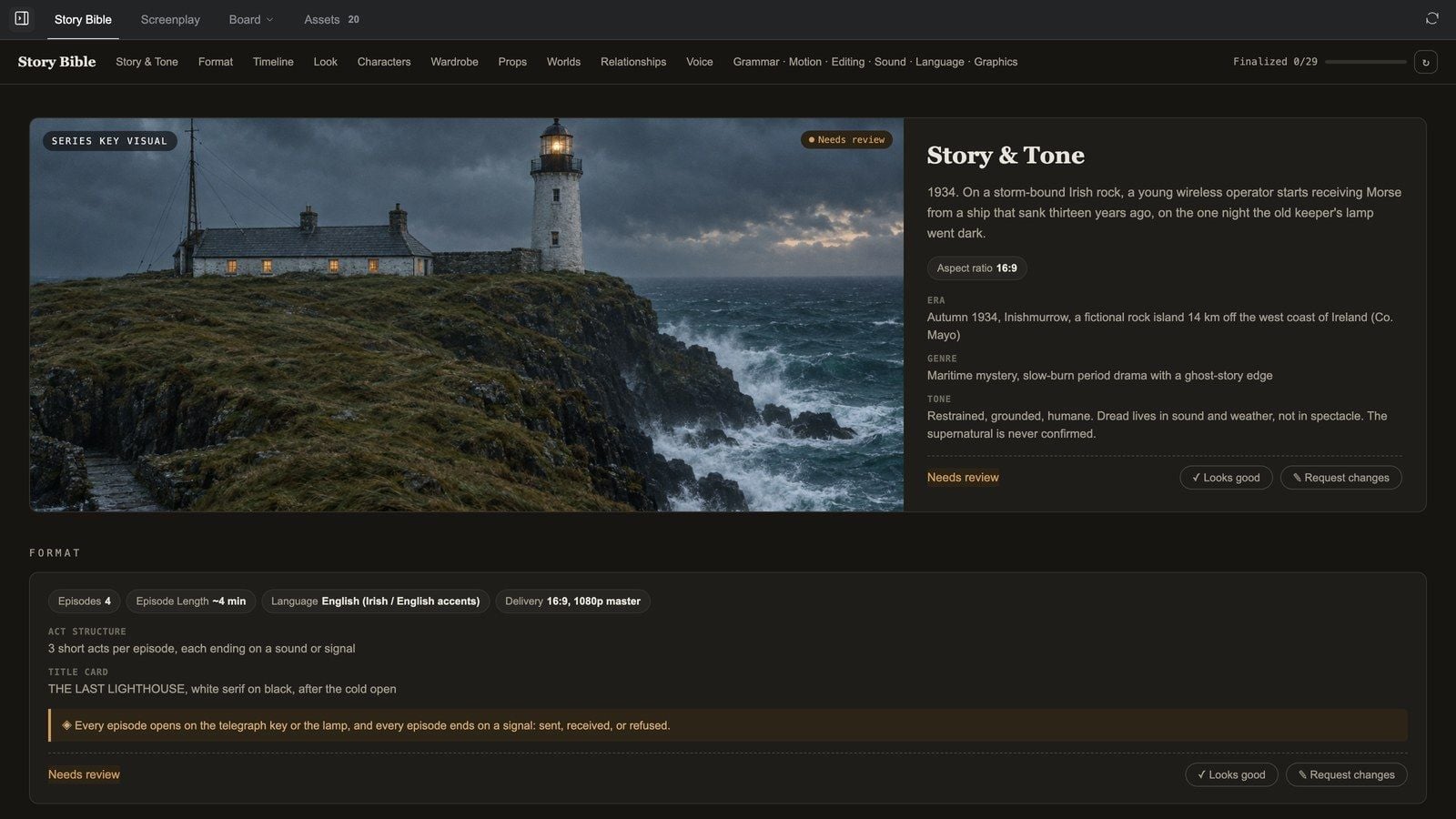
At the top: the title, a section nav and a Finalized n/m progress bar. Sections appear as they fill: Story & Tone (the series key visual), Format, Timeline, Look (with a Color script), Characters / Wardrobe / Makeup & Hair / Props / Worlds (entity cards), Relationships, Voice, and the rule cards Motion & Camera / Editing / Sound / Language / Graphics.
Text cards list ✓ Allowed and ✕ Forbidden columns with a status at the top right (Needs review / Approved / Changes requested) and two buttons:
- ✓ Looks good approves the rule.
- ✎ Request changes opens a box — "What should change? Be specific — this drives a regeneration." — Send it to the agent (which rewrites or regenerates accordingly) or Cancel.
Entity cards (characters, wardrobe, props, worlds) carry a CANON badge; hovering shows ✎ Mark up and ⤢ View. The + next to the thumbnails (Add auxiliary reference) offers:
- ⚭ Derive from CANON — new pose / outfit / expression: the CANON sheet is passed as image input, so identity holds when you change the pose, the outfit or the expression;
- ✦ Generate from a description: a new image from text, with the entity's anchors and NEVER lines riding along in the prompt;
- ⇪ Upload an image: your own picture becomes an auxiliary reference under this CANON.
Marking up an image: ⤢ View opens it large; ✎ Mark up lets you draw and drop sticky notes ("gloves in dark brown"); when you have enough, ⟳ Regenerate with n notes regenerates in one go, and ✓ Approve this image signs it off.
Clip: reviewing cards in the Story Bible tab — Looks good on a rule, Request changes with a note, View on a character card, Mark up with a sticky note
Attaching it to a project
When the bible is done, go to any media project:
- Press the Story bibles button in the composer ("Story bibles — attach, create, manage").
- Pick it in Choose a story bible (search, filter by All / Active / Story Bibles / Org; each row offers Open / Rename / Delete / Set status). No story bible detaches.
- From then on, before every generation in that project the agent copies the canon's reference images and voice clips into the project library and shoots from them — an attached story bible is law.
Clip: in a new project, press Story bibles → Choose a story bible → pick The Last Lighthouse → the bible is attached
Story bibles in 30 seconds:
When is a bible worth it? Whenever the same character or the same product has to appear in more than three shots. It saves not one generation but the rework of a whole piece.
Screenplay
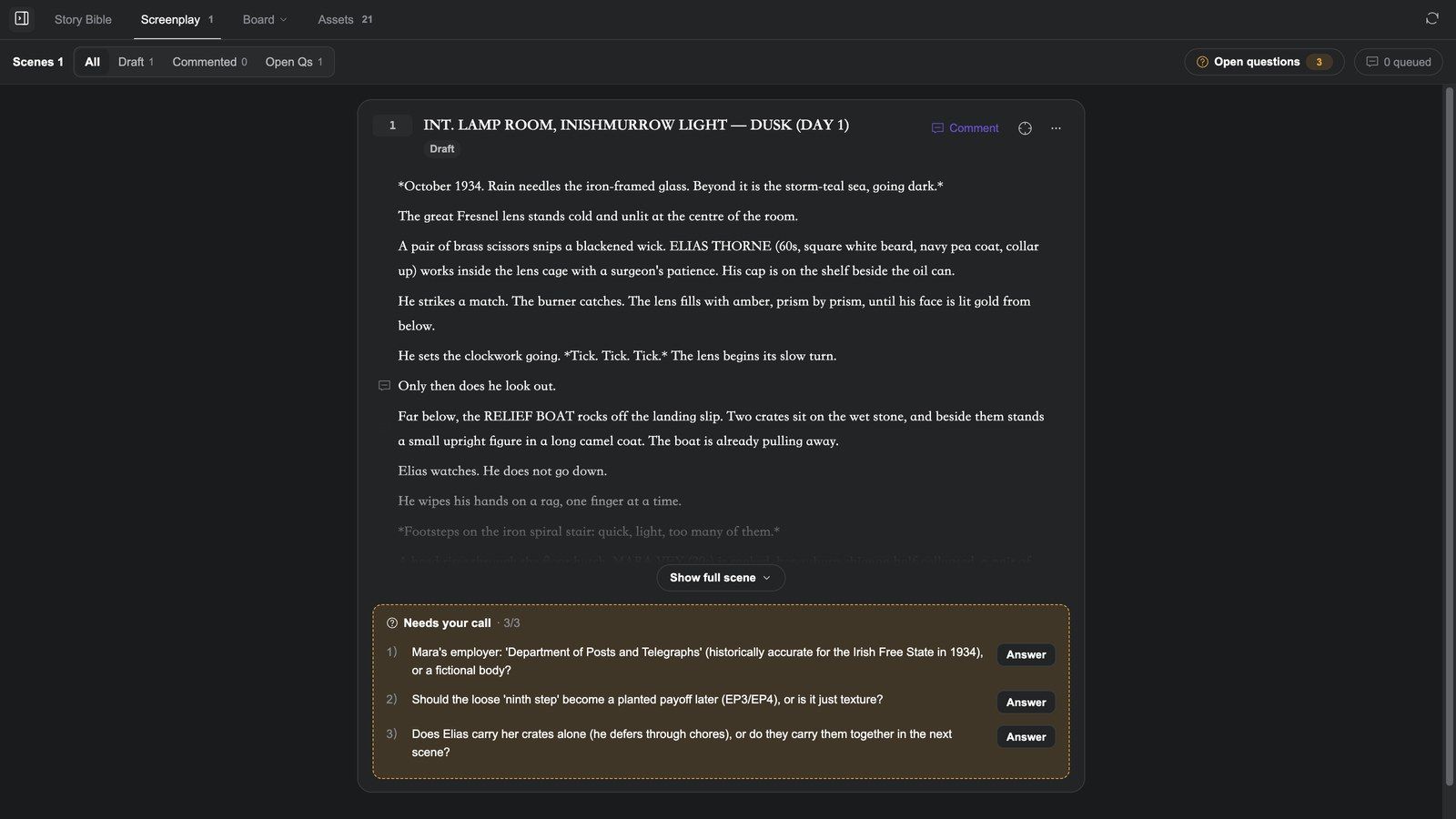
Bible projects also have a Screenplay tab, which manages the script by scene: every scene is a text node on the board.
- The empty state offers three starts: 01 Write scene 1 from the outline (from the scene outline in the Story Bible), 00 Start with the prologue (set the film's tone first) and Paste a scene I wrote (the agent continues in your voice). The first two send straight away; the third only fills the composer.
- Each scene card has Mark as final, Comment, Copy text, Show full scene / Collapse, See changes; Open on board jumps to the scene's node.
- Filter by All / Draft / Commented / Open Qs; Outline searches by scene number or place.
- The Open questions drawer collects every "needs your call" item the agent left in the scenes, Cross-scene or Per scene; answer, Queue, and they go to the agent with the other comments.
Clip: the empty Screenplay tab → Write scene 1 from the outline → the agent writes scene 1 as a text node on the board → expand the scene card → Open on board jumps to the node → back in Screenplay, queue a comment → Mark as final
How it fits: script first → storyboard second (the image tools' Grid templates: Story beats 4-grid, 25-cell storyboard) → video shot by shot. That order is the cheapest path through Media Studio.
Characters and voices
- The Characters source in the Assets panel manages characters you can pull into any project; the Bible source browses a bible's canon images directly.
- The bible's Voice section records every character's voice (TTS model, Voice ID, a voice sample), reused for narration and Dub.
- For a full character package, attach a skill: Casting Director (a consistent face, full-body looks, an expression sheet, turnarounds) or Actor Emotion Performer (one portrait → a set of 5-second emotional performance clips).
Assets and projects
- The Assets tab groups by Image / Video / Audio / 3D / Text / Other across six sources (Library / Web images / Characters / Styles / Music / Bible), with search, upload, Pin-colour filtering and multi-select Add to board / Download / Delete. Details in The board and image tools.
- Projects lists by recent activity; cards offer Rename / Set cover / Delete, and Set cover picks one of the project's assets or Reset to automatic. Details in the overview.
- Every Media Studio project also appears in Genspark's project history, next to Super Agent and Design work.
Sharing
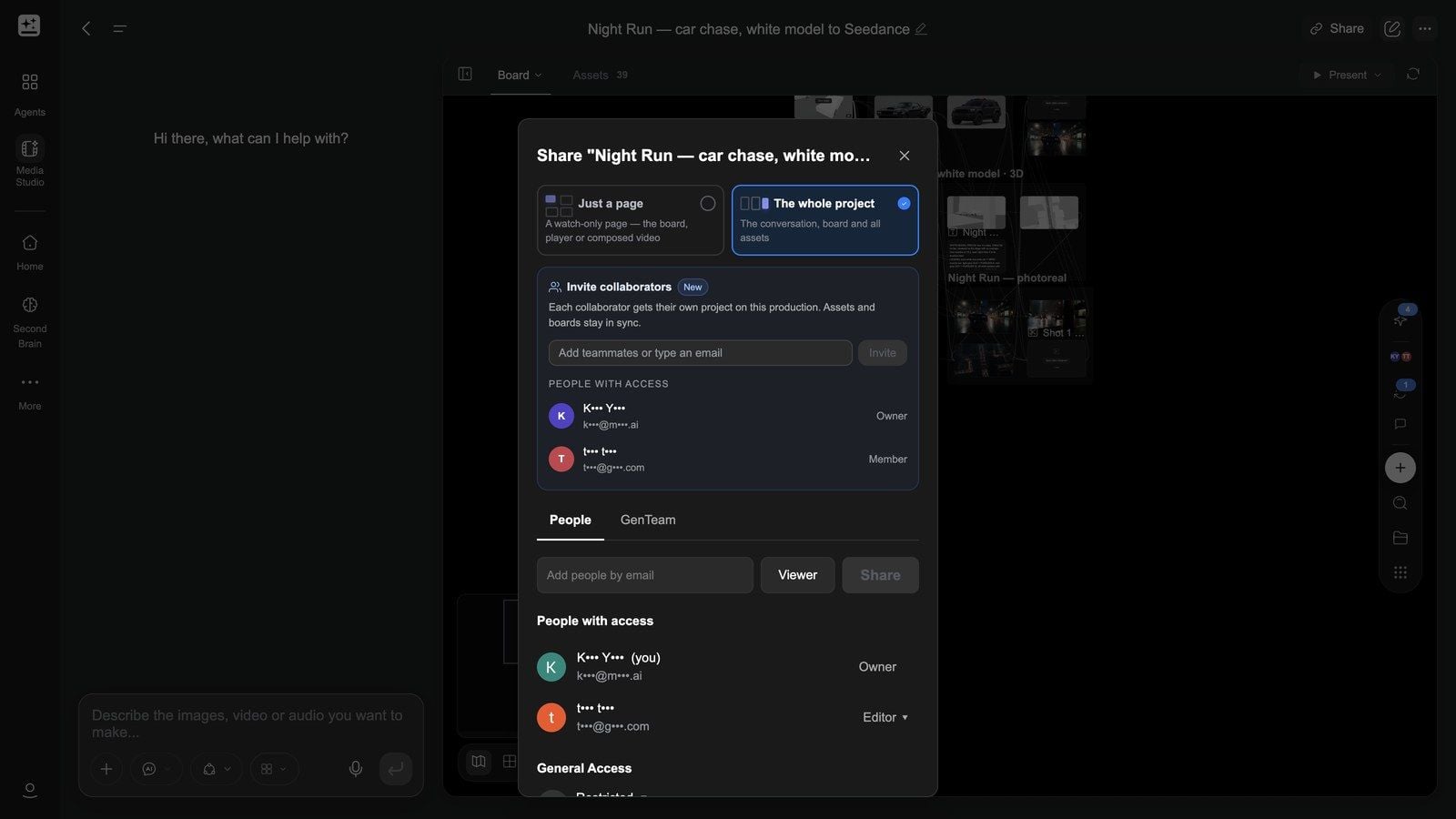
Press Share at the top right:
| Option | What the link shows |
|---|---|
| Just a page | One page only: the Board, the Player, or a composed Video (watch-only) |
| The whole project (default) | The conversation, the board and all assets |
Then Copy link. General Access below decides who can open it: Anyone with the link / Restricted / Anyone in your organization. A share is for watching; to have someone work with you, use a production (below).
Present plays the finished cut full screen and needs a composer with clips (see the video article).
Collaboration: productions
To make a piece with several people, enter their emails under Invite collaborators in the Share dialog and press Invite. "Each collaborator gets their own project on this production. Assets and boards stay in sync."
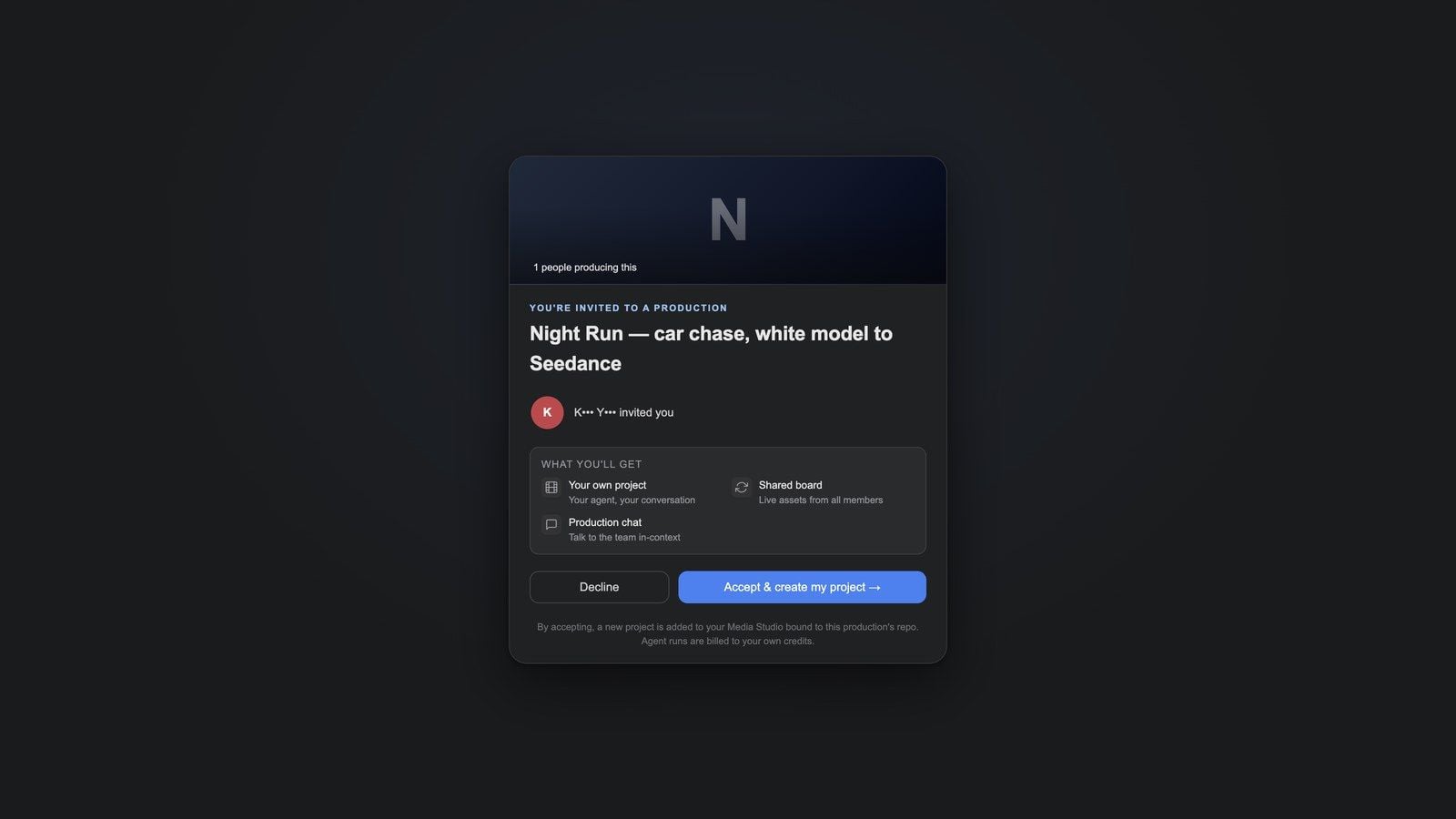
An invitee opens the link to You're invited to a production and, after Accept & create my project →, gets:
- Your own project — their own conversation and their own agent;
- Shared board — the board is shared, with live assets from every member;
- Production chat — talk to the team in context.
The invitation page states it plainly: "Agent runs are billed to your own credits." Each member's agent runs on their own credits — that is what makes collaboration work. People with access shows Owner / Member and invitations still Awaiting response.
Clip (two accounts, cut together): the owner types an email under Share → Invite → Pending invites; the invitee opens the emailed link → "You're invited to a production" → Accept & create my project → lands in their own new project with the shared board already populated → the owner reopens Share and People with access now lists a Member
Hand-offs to other products
- From Genspark Design: Design's file browser offers Edit in Media Studio, which packs the design's assets and imports them as ordinary nodes.
- To editors and design tools: the video composer's Export → Export Premiere project / Export CapCut draft; the layer editor's Download PSD.
- Publishing interactive films and pages: an HTML node's Export build, then GenCode (the desktop client) publishes to the web, desktop (Steam) and mobile.
FAQ
What is the difference between a Story bible and the character library?
A Story bible is the complete setting of one production (world + cast + wardrobe + props + voices + camera grammar) and attaches to a project as a whole; the character library holds reusable character entries. Series work wants a bible; loose assets want the library.
Can I use one bible in several projects?
Yes. Attach it with the composer's Story bibles button in any project; its canon is copied in before shooting.
What does a bible cost?
The paper rounds (directions, proposal, Questions) cost only planning; the image round is billed per image, and the agent tells you in the confirmation form roughly how many images and how long before it starts.
Can I restrict a share link?
A share is for watching; General Access controls who can open it (link / restricted / organisation). For hands-on collaboration, use Invite collaborators.
Troubleshooting
The consistency I set up did not hold
Check three things: is the bible attached to this project; did you connect the elements to reuse as references; was a different style or model specified for the generation (a model change can shift the look).
Every card says Needs review and the agent is not moving
It is waiting in the Questions tab for you to confirm the image plan. Answer and press Continue.
I sent Request changes but the image did not change
Regeneration is an agent run — watch the progress in the conversation. "Not nice" does not produce a useful change; describe the specific difference.
After accepting an invitation I cannot see the others' work
The shared board syncs as generations finish; if you just joined, wait for the current member's run to end (the project is "busy" during a run) or press refresh at the top right of the board.