


Learn how to work the Media Studio board: add and connect nodes, use references to keep results consistent, and finish images in the layer editor.
Updated Jul 14, 2026
Overview
Key Features
FAQ
Troubleshooting
Media Studio: the board and image tools
What the board is
The board is Media Studio's workbench. Everything you ask the agent for ends up on it, and everything on it can be changed.
- Every output is a node. Images, video, audio, 3D, text, video composers, layer documents (Image composer), 3D director stages and HTML pages — nine node types, all on one board.
- A connection means "reference". Drag from node A's ⊕ to node B and B's next generation uses A as a reference. That is how a character, a product or a set stays consistent across dozens of shots.
- A project can hold several boards. Open the menu next to the Board tab: New board, Rename board, Delete board (you keep at least one, and a board with generations in flight cannot be deleted).
- Everything autosaves. Undo / redo work (⌘Z / ⇧⌘Z); reload or switch devices and the board is exactly as you left it.
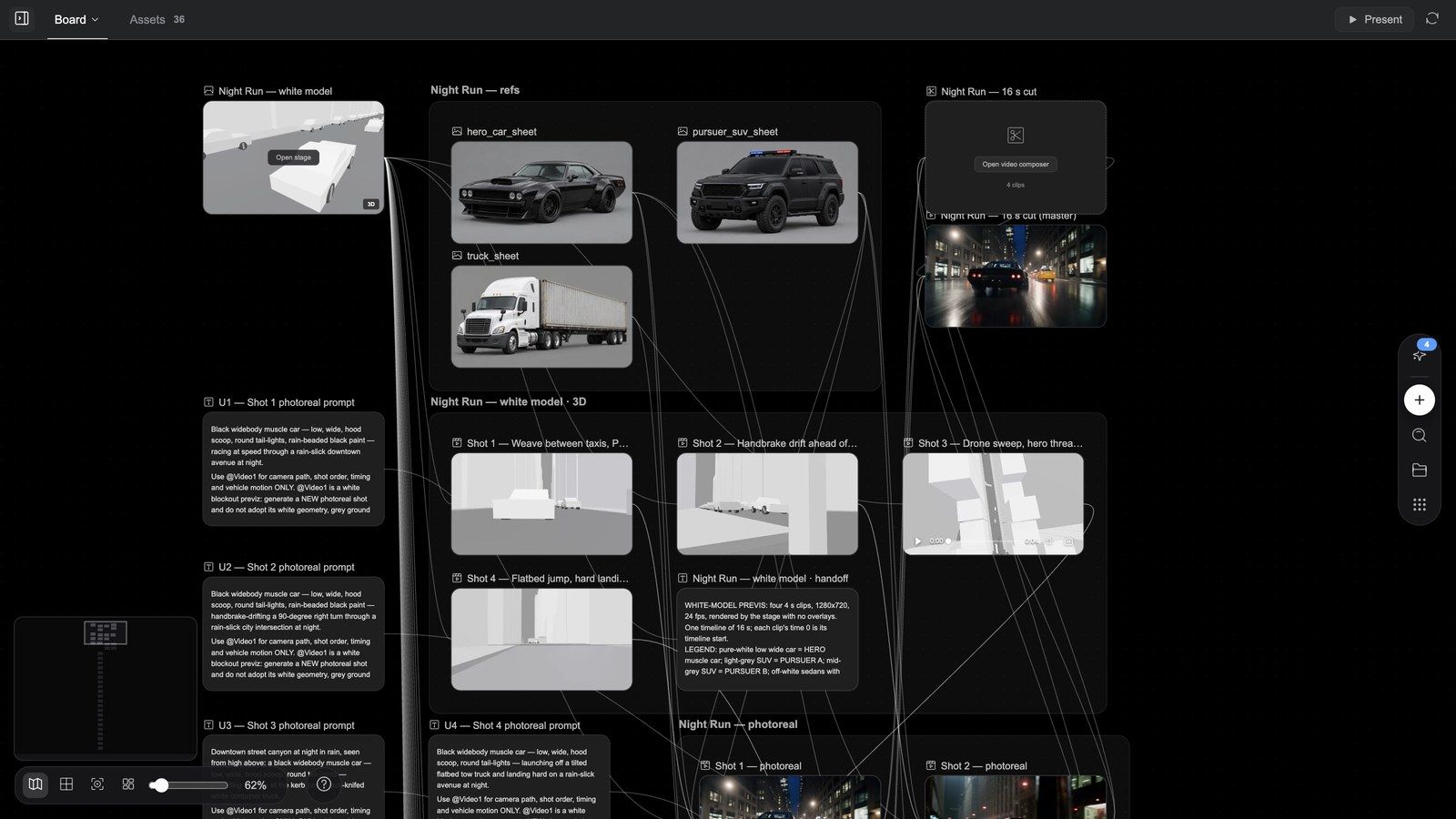
Board anatomy
| Where | What is there |
|---|---|
| Tab bar above the board | Board (the current board's name; with several boards, click to switch), Assets (with a count), Player (appears once the agent has shown a player), one closable tab per HTML page, Questions (while the agent is asking); Story bible projects also have Story Bible and Screenplay |
| Right side of the tab bar | Present (when a composer has a cut), refresh; on the Assets tab also Search assets and Upload |
| Vertical dock on the right edge | Add node (⊕), Search nodes, Assets, Templates |
| Canvas toolbar, bottom left | Toggle minimap, Snap to grid, Fit view, Tidy up canvas, the Zoom slider, the percentage (Reset zoom), ? (Shortcuts) |
| Conversation column on the left | The chat with the agent: question cards, generation cards, skill calls; the button at its top left hides or shows the chat so the board can fill the window |
Shortcuts (press ? any time): undo ⌘Z, redo ⇧⌘Z, double-click to add a node, drag from a node's ⊕ to generate, ⌘ + scroll to zoom, pinch to zoom, scroll to pan, Space + drag to pan, middle / right drag to pan.
Cannot find a node? Use Search nodes in the dock, or click a generation card in the chat — the board flies to the node and highlights it.
Adding nodes: the ⊕ menu
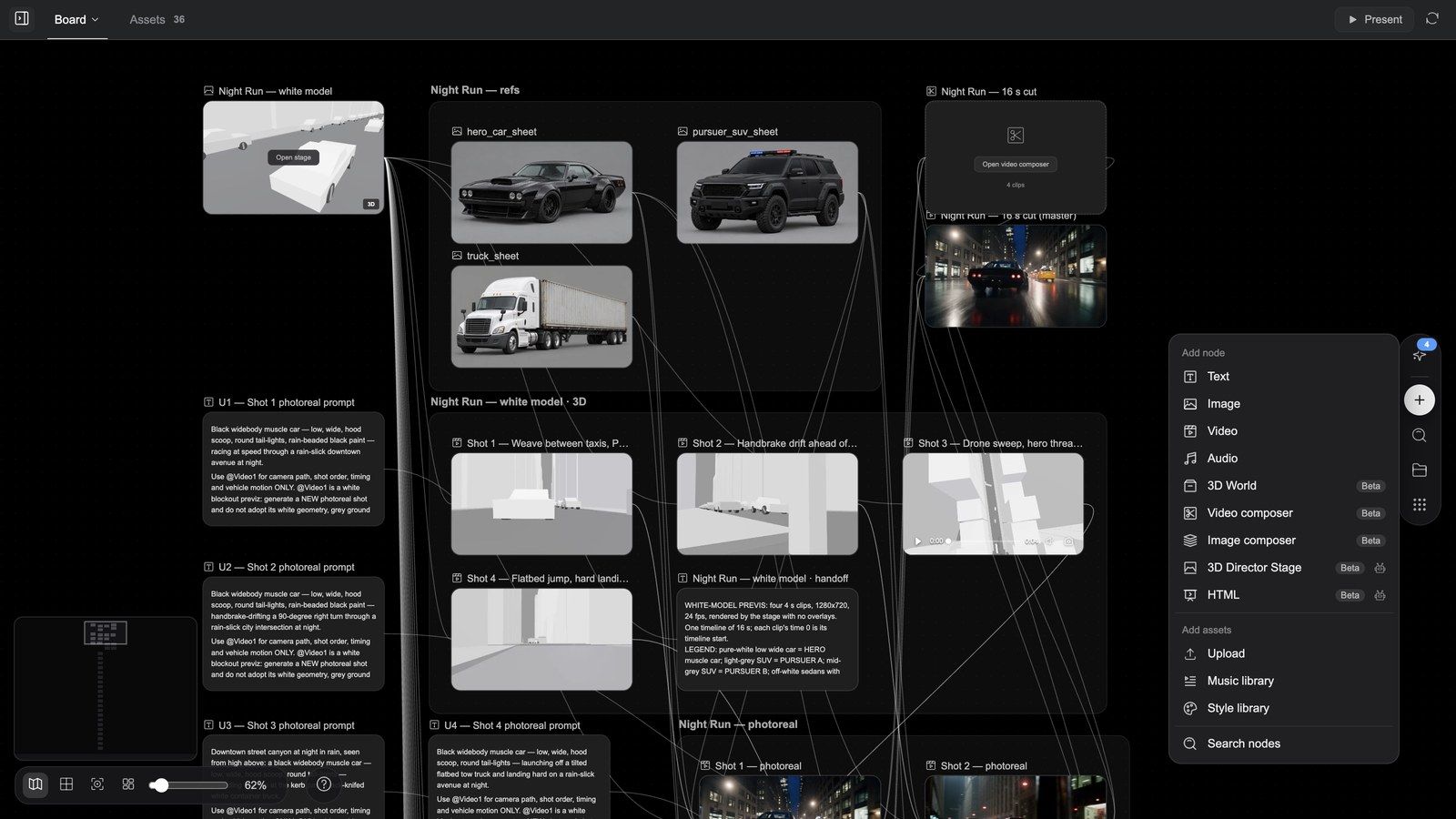
Double-click empty canvas, or press Add node in the dock:
Add node
| Entry | What you get |
|---|---|
| Text | A text node: scripts, copy, shot descriptions |
| Image / Video / Audio | An empty media node; describe what to generate in its prompt box, pick a model, send |
| 3D World (Beta) | A 3D node: a space you can orbit and walk into |
| Video composer (Beta) | A multitrack timeline (see the video article) |
| Image composer (Beta) | A blank layer document you edit in the layer editor (below) |
| 3D Director Stage (Beta, built by the agent) | A director stage: white-model previs, cameras, movement back to the board (see the 3D article) |
| HTML (Beta, built by the agent) | An HTML page: poster / motion / interactive film / app (see the 3D article) |
Add assets
| Entry | What it does |
|---|---|
| Upload | Upload images, video, audio or 3D models from your computer |
| Music library | Pick music and sound effects (All / Music / SFX / Songs; Preview, then Add) |
| Style library | Pick a style (attached to the prompt as a style fragment) |
Search nodes sits at the bottom of the menu.
Generating from a node: the ⊕ drag menu
Hover a node and drag its right-hand ⊕ onto empty canvas (or click it) to get Generate from this node: Text, Image, Video, Image editor (single images only) and 3D World (or 3D Director Stage when the source is a 3D node). You get a new node with the source already connected as a reference.
Shift-click several nodes and the selection box gets its own ⊕; dragging it gives Generate from all selected nodes. With two or more images selected there is an extra group, Stitch all selected image nodes → Image editor, which puts them into one layer document.
Connections: references as discipline
Most AI tools keep consistency by re-describing everything each round. Media Studio uses connections.
- Drag from the source node's ⊕ to the target node; you get a reference edge.
- Every generation you start on the target node sends the source along as a reference (the node panel shows the numbered reference thumbnails).
- Delete the edge to stop.
Typical uses:
- Product: one product shot connected to a dozen shot nodes → the same product in every shot.
- Character: a character sheet (or a Story bible character) connected to every node it appears in → same person, new set, new angle.
- Style: one style reference connected to a whole storyboard → one grade across the piece.
- Voice: audio nodes can only be connected to a Dub configuration node, as voice references (up to 6).
Tip: more references are not better. Two or three strong references on a node are far more stable than ten weak ones.
The image node toolbar
Select an image node and its toolbar appears above it. Buttons are icons; hover for the name. Left to right:
| Tool | What it does |
|---|---|
| Crop | A crop frame on the node (rule-of-thirds grid, size readout); Confirm crop makes a new cropped node |
| Gen 3D world | Turns the picture into an orbitable 3D scene node straight away |
| Edit | Selects the node and puts the cursor in its prompt box — for changing the prompt and regenerating; not the layer editor |
| Redraw | Paint the area to change and describe what goes there; the result lands in a new node beside the source |
| Grid templates | One generation, a whole sheet: Multi-camera 9-grid, Story beats 4-grid, Face 3-view, Character design sheet, Scene design sheet, Product design sheet, 25-cell storyboard, Cinematic relight, Character 3-view |
| Grid split | Cuts a grid image apart: 4 cells (2×2), 9 cells (3×3), 16 cells (4×4), 25 cells (5×5) or Custom grid; then Select cells to operate on, Generate HD image (2× HD / 4× HD, up to 4 cells per batch) or Create storyboard group |
| More (⋯) | The advanced tools below |
| Add to chat | Drops a mention of this node into the composer so your next message refers to it |
| View prompt | The prompt that generated this image |
| Pin | Tags the asset with a colour (Red / Orange / Yellow / Green / Blue / Purple / Gray, or Remove pin) — easy to spot on the board and to filter in the Assets panel |
| Fullscreen / Download / Delete | View large, download the original, delete the node |
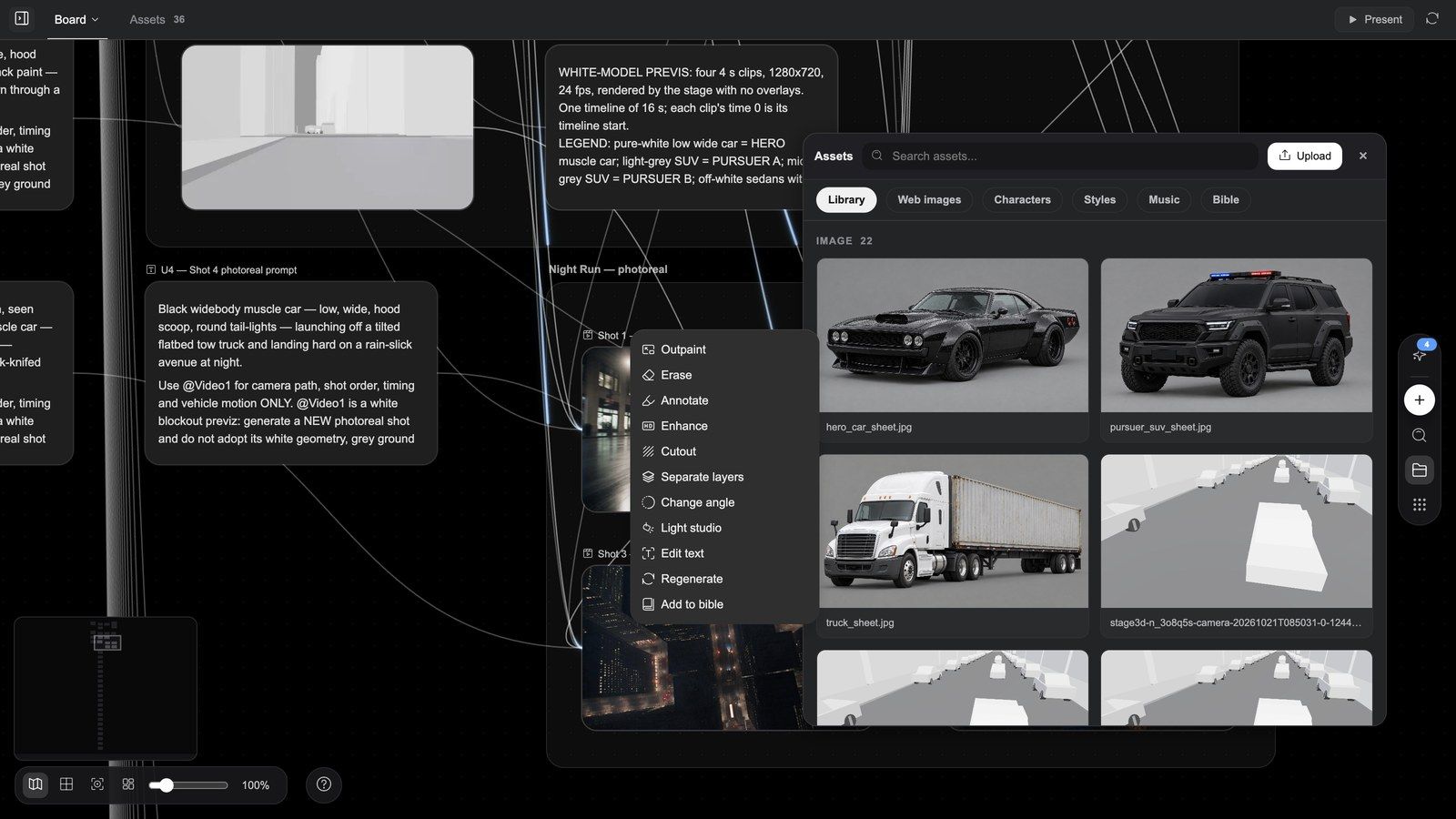
The More menu
| Tool | What opens |
|---|---|
| Outpaint | Pick an Aspect ratio (Free / 1:1 / 4:3 / 16:9 / 9:16 / 2:3 / 3:2) or drag the frame wider, choose resolution and count, Generate |
| Erase | Brush / Marquee Selection / Eraser over what should go (brush 1–100); generate and the object is removed |
| Annotate | Draw on the picture — Select / Paint / Erase / Rectangle / Arrow / Text, Lock base image — then "Describe changes to generate..." and Generate |
| Enhance | Topaz Labs upscaling: Mode (Standard / Low resolution / 3D & CGI / High fidelity / Text refine), Upscale factor 2x / 4x |
| Cutout | Removes the background in one click; the subject lands on a transparent PNG in a new node |
| Separate layers | Box the parts to split out (no boxes = every major element), Separate all or Separate N regions; base image + up to 16 transparent layers, billed per layer, unused credits refunded; the result is an editable layer document |
| Change angle | New camera position: 15 presets (Front View, Front High Angle, Left Profile, 3/4 Right View, Dutch Angle, Bird's Eye View, Worm's Eye View, Over Shoulder, Close-up, Wide Shot…) plus Tilt / Yaw / Zoom — the camera moves, the scene stays |
| Light studio | New lighting: 25 presets (Standard 3-Point, Rembrandt, Butterfly, Silhouette, Cyberpunk, Golden Hour, Blue Hour, Candlelight, Teal & Orange…), with Main / Fill / Back lights and Intensity / Height / Distance and colour for each |
| Edit text | Recognises the text in the image; click a text block to rewrite it |
| Regenerate | Same prompt, another take (only when the node has a prompt) |
| Add to bible | Writes this reference into a Story bible |
Models and sizes for Redraw / Erase / Outpaint: Redraw defaults to Flux Fill, Erase to Eraser, Outpaint to Flux Outpaint; all can switch to Nano Banana 2.1 or Nano Banana 2 Flash Lite. Supported models offer 1K / 2K / 4K and x1 / x2 / x4 takes.
Why does every tool make a new node? The original always survives — if you do not like the result you throw away the new node instead of damaging the source.
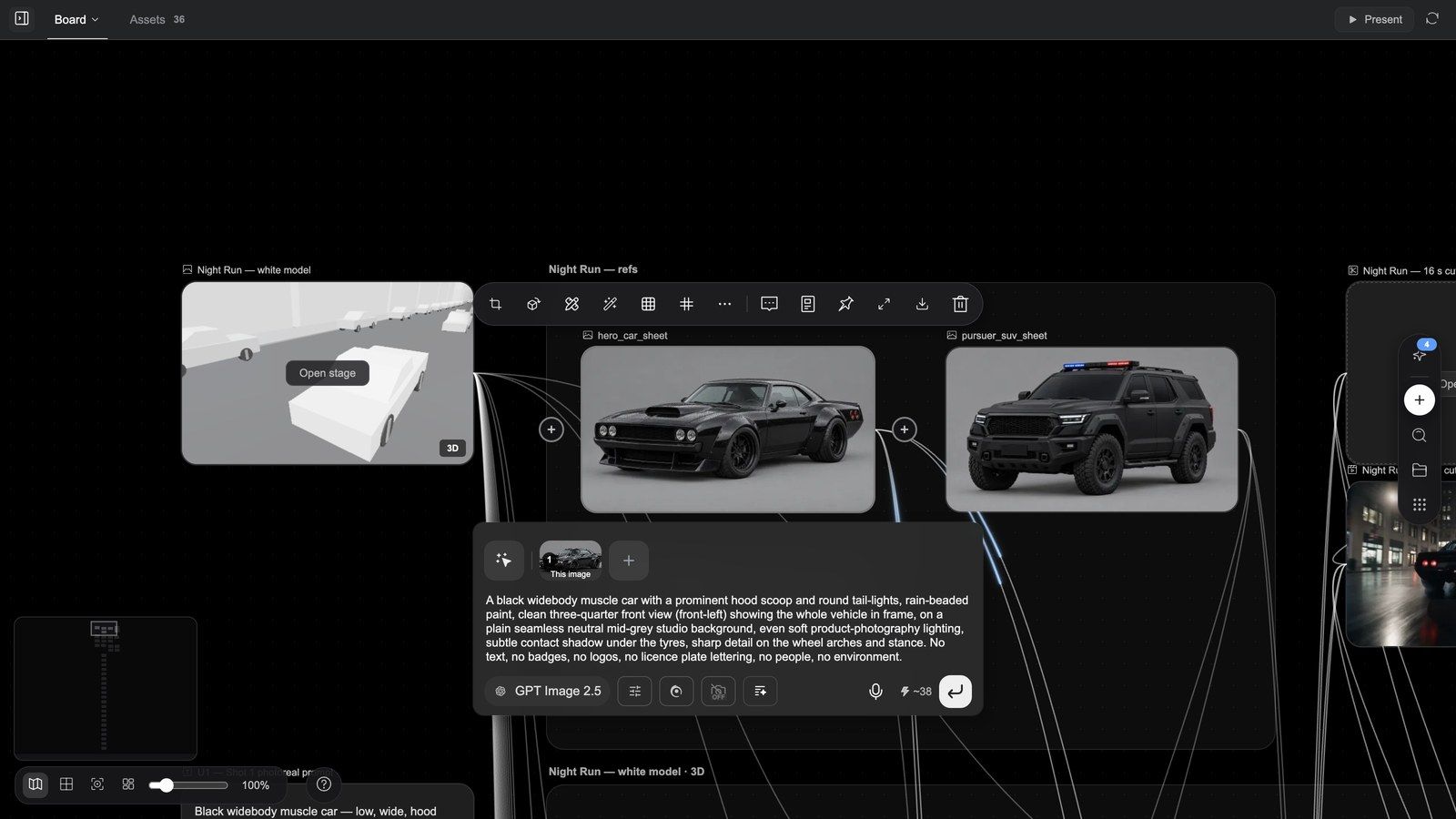
Tool demos
Redraw — repaint one area, keep the rest
Erase — paint out what should go
Outpaint — extend the picture
Cutout — remove the background in one click
Separate layers — split a picture into editable layers
Pin — colour-tag an asset
Add to chat — refer to the node in your next message
The layer editor: Photoshop-grade finishing
The layer editor belongs to Image composer (layer document) nodes, not to plain images. There are four ways in:
| Way in | What you get |
|---|---|
| Image node ⊕ → Generate from this node → Image editor | A layer document with that image as its base layer, connected as a reference |
| Image node More → Separate layers | A document split into layers (the card says N layers) |
| HTML poster node → Export layers | A document named " |
| Add node → Image composer | A blank artboard |
The layer document's card has Edit layers (opens the editor); its toolbar also has Export image (flattens the visible layers into a new image node without opening the editor).
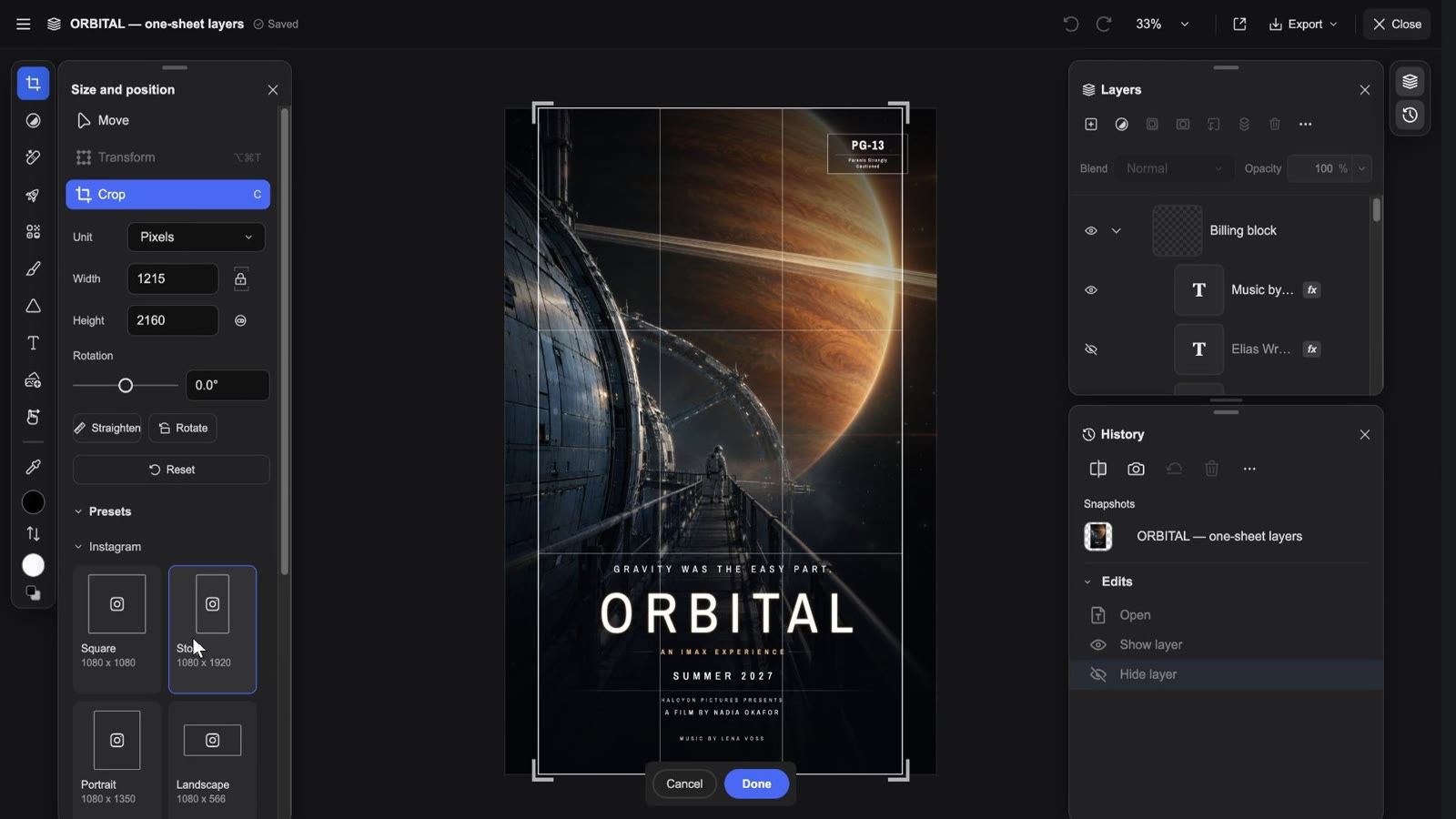
Clip: open a layer document → hide / show a layer → select a layer → the retouch and adjustment panels → crop presets → zoom → the Export menu → Export to canvas → close
What you see when it opens
Top bar (left to right): ≡ Main menu (Document / Edit / Image / Layer / View / Effects / Export as… / Import… / Settings…), the document name, the save state (Saving… / Saved), Undo / Redo, the zoom menu (Zoom in / Zoom out / 100% / 200% / Fit on screen / Fill screen), a one-click Export to canvas icon, the Export menu and Close. During an effect or a Liquify session the top right becomes Cancel / Done.
Tool rail on the left (shortcut in brackets): Move (V), Adjustments, Retouch (J), Quick actions, Effects, Paint (B), Shape (U), Text (T), Add image, Hand (H), Eyedropper (I), then foreground / background colour, Swap colors (X) and Default colors (D). Pick a tool and its options panel opens beside it:
- Move has three modes: Move (Auto-select layer, six align buttons, distribution and align-to options under Advanced settings), Transform (Free transform, Skew) and Crop (below).
- Retouch lists nine tools: Remove, Spot healing brush, Healing brush, Clone stamp, Liquify, Face, Lighten (Dodge), Darken (Burn), Saturation (Sponge). Remove has Brush size, Sample all layers and Remove after each stroke; the healing / cloning tools need Set source first, sampling Current layer / Current and below / All layers.
- Adjustments: a row of Presets, then Brightness/Contrast, Hue/Saturation, Exposure, Vibrance, Color Balance, Black & White, Gaussian Blur, Levels, Curves, Invert, Brightness and Color, Solid Color.
- Quick actions → Detect objects finds the subjects and shows the Object selection bar: Deselect / New layer / Remove.
- Paint: Brush / Eraser / Paint bucket / Gradient / Smudge.
Right side: two panels, switched from the thin rail on the edge:
- Layers: a header row with New layer, Adjustment layers, Layer styles, Create mask, Create clipping mask, Arrange, Delete layer, Layer actions (⋯: Group / Ungroup / Merge down / Merge visible / Flatten image / Rasterize…); below it Blend (27 blend modes) and Opacity; every row has an eye (show / hide), a lock and fx; drag to reorder, double-click a name to rename.
- History: hold Show original to compare, Create snapshot to keep a version, return to any entry under Snapshots, and Revert to the opened state.
Cropping
Move → Crop (shortcut C): pick a Unit (Pixels / Inches / Centimeters / Millimeters), set Width / Height (lockable ratio, swappable), drag Rotation (−180° to 180°) or Straighten; Presets holds the social sizes — Instagram (Square / Story / Portrait / Landscape / Profile photo), Facebook, TikTok, YouTube Thumbnail, LinkedIn, X — and Photos ratios Square / 2:1 / 3:2 / 4:3 / 5:4 / 7:5 / 16:9. Esc cancels; apply and keep editing.
Exporting and saving
- Export → Download PNG: one flattened image.
- Export → Download PSD: a layered Photoshop file (layers, groups, masks, blend modes, adjustment layers and guides are kept).
- Export to canvas: flattens the current state into a new image node on the board, downstream of the document; the editor stays open and shows "Exported to the canvas as a new image node" with a View node button.
- Autosave: every change is saved as you go; Close first applies any unfinished crop, transform or text edit. There is no Save / Cancel.
Common mistake: pressing Edit to "open the image for retouching" — that only focuses the prompt box. To reach the editor, use ⊕ → Image editor, Separate layers, or a poster's Export layers.
The Assets panel
The Assets tab (and Assets in the dock) is your asset hub:
- Six sources: Library (this project), Web images, Characters, Styles, Music, Bible (a Story bible — Choose a bible first).
- Grouped by type: Image / Video / Audio / 3D / Text / Other.
- Search assets, Upload (or just drop files in); in Library, Pin colours can be used as a filter.
- Select several and the bar shows N selected: Add to board, Download, Delete, Clear selection. Over 500 MB the download says "Selection is too large to zip. Files are downloading one by one."
- Anything picked from another source becomes a node of this project once it is on the board.
Tip: assets belong to a project. To reuse a character or a style across projects, put it in a Story bible rather than copying files.
FAQ
Can I move nodes around?
Yes. Position, size and grouping are free; moving a node never changes a result — only reference edges do. Tidy up canvas reorganises the board in one click.
Which generations does a reference edge affect?
Only generations you start on the target node. The source is never changed by being connected.
Do the tools overwrite the original?
No. Every tool produces a new node; the original stays on the board for comparison and rollback.
What is the difference between the layer editor and Image composer?
None — Image composer is the node, the layer editor is the workspace you get when you open it. Separate layers, a poster's Export layers and ⊕ → Image editor all produce Image composer nodes.
Can I put my own assets on the board?
Yes. Drop files onto the board, use Add node → Upload or the composer's +; uploads become nodes you can reference.
Troubleshooting
Double-clicking the board does not open the ⊕ menu
A node is probably selected; click empty canvas first, then double-click — or press Add node in the dock.
A tool button is greyed out
Most tools need an editable source: Separate layers needs a source image that is still in the project ("The source image for this layer stack is gone"); Enhance and Depth motion capture on video accept clips up to 60 seconds.
The brush does nothing in the layer editor
Check that the target layer is neither hidden nor locked ("The brush can't be used because the target layer is hidden / locked"), and that a pixel layer is selected.
An AI retouch in the editor fails
Not enough credits to run this edit (top up), Image is too large for this edit (reduce the image size first), The edit timed out, please try again (retry).
The result did not land on the node I expected
Generation follows the most recently selected node. Click the target node first, or click the generation card in the chat to fly to the result.