


Learn how to turn a single brief into a finished ad, short film, or explainer with Genspark Media Studio, where every image, clip, and voice track stays editable on one board.
Updated Jul 14, 2026
Overview
Key Features
FAQ
Troubleshooting
Media Studio
What is Media Studio?
One brief, one board, one film you can ship.
Media Studio is Genspark's workbench for media. You describe what you want; the agent breaks it down, picks the models, runs the tools and places every result on a board — and every result stays editable: an image can be split into a layered document, a clip can go into a multitrack timeline, a scene can be blocked out as a white model on a 3D stage before a single frame is rendered, and a voice track can be laid back over the picture.
It is not a "type a line, take an image" tool:
- From brief to deliverable. Ads, product showcases, explainers, short films, podcast clips, brand kits, interactive films, animated HTML pages — the whole way from the first sentence to the finished file happens on one board.
- The board is the project. Nodes and connections record every step. To change step three, go back to step three; nothing has to be redone from scratch.
- Outputs are editable by design. A layer editor, a video composer, a 3D director stage and editable HTML pages mean AI output can be refined the way it would be in a professional tool.
- Skills carry method, not just buttons. A skill is a proven production routine (write the script, lock the cast, keep continuity, render shot by shot). Attach one and the agent follows it.
- Every credit is accounted for. On the Standard tier, planning and default-quality images come out of your weekly free quota; video, audio and 3D use credits; a draft costs nothing until you press Run.
All of these were made in Media Studio: a 30-second footwear TVC, a 60-second French kitchen brand film, a four-ending interactive short, an IMAX movie one-sheet, a 30-second animated HTML data report, and a night car chase blocked out as a white model before it was shot. Open Get inspired on the home page and press How it's made on any piece to see how it was built, step by step.
How this guide is organised
| You want to know | Read |
|---|---|
| How to start, modes and tiers, costs, managing projects | This article |
| How the board works, the image tools, the layer editor, the Assets panel | The board and image tools |
| Video tools, Dub (re-voicing a whole clip), the video composer, Slides/Design to video | Video, dubbing and the finished cut |
| The 3D director stage (white-model previs, glb import), HTML page kinds, Motion Studio (the board's After Effects: title cards, captions, charts, brand type over footage), interactive films | 3D and HTML pages |
| Story bibles, screenplays, sharing, productions | Story, assets and collaboration |
| 17 deliverables, step by step, with prompts you can copy | Recipes |
What you can make
You do not pick a "type" first — describe the result and the agent picks the approach. Typical deliverables (each has a full walkthrough and an example project in Recipes):
| What you want | How you might say it |
|---|---|
| Product ad / TVC | Make a [15]-second vertical ad from this product shot, lead with [the key benefit], end on the logo and one call to action. |
| Product showcase | A 30-second showcase for [these headphones]: the product is the hero, on-screen callouts, readable with the sound off. |
| Explainer / report video | Turn [this doc / this deck] into a [60]-second explainer that answers [one question], facts checked, with captions and a narrator. |
| Short film / brand story | A 30-second short with a setup, a turn and a line worth remembering. Style: [neon in the rain]. |
| Recast existing footage | Same moves and camera as [this reference video], with [my character] in [my place] — show me the white model first. |
| Long content into clips | Cut [this podcast / this talk] into [5] vertical clips of 30–60 seconds, each opening on its strongest line, captioned. |
| Presenter / talking head | A presenter video from this script, [professional but warm], [office] background. |
| Music / music video | A [30]-second score for [this brand film], [bright and building]; hits on the cuts. |
| Brand visual kit | A visual system for [this coffee brand]: logo rules, palette, packaging, menu, social templates. |
| Poster / key visual | A [cinematic] key-art poster, title [ORBITAL], with room for a billing block at the bottom. |
| 3D blocking / previs | Block out [a two-car chase on a night street] on a white stage, then shoot it in [rainy neon, handheld]. |
| Interactive film / animated page | A vertical branching story with choices; or a 30-second animated data page from [this report]. |
Why it is different
Most AI media tools treat every generation as an endpoint: you get an image or a clip, and the workflow resets. Media Studio treats the board as a workbench:
- Results stay on the board, not in a downloads folder. Every output is a node you can open, redo or version.
- References are first-class. Connecting one node to another makes it a reference the next generation must respect — so a character, a product or a set stays consistent across dozens of shots without being re-described every round.
- The professional toolchain is on the board. A Photoshop-grade layer editor for images, a multitrack timeline for video (with Premiere / CapCut project export), a director stage for 3D, and a Studio for every HTML page.
- Skills turn "it can" into "it does". Film production, ad direction, explainers, podcasts, music singles… attach a skill and the agent follows a mature routine instead of improvising.
- Costs are predictable. Free quota covers planning and default-quality images; drafts let you see the plan before spending.
Quick start
-
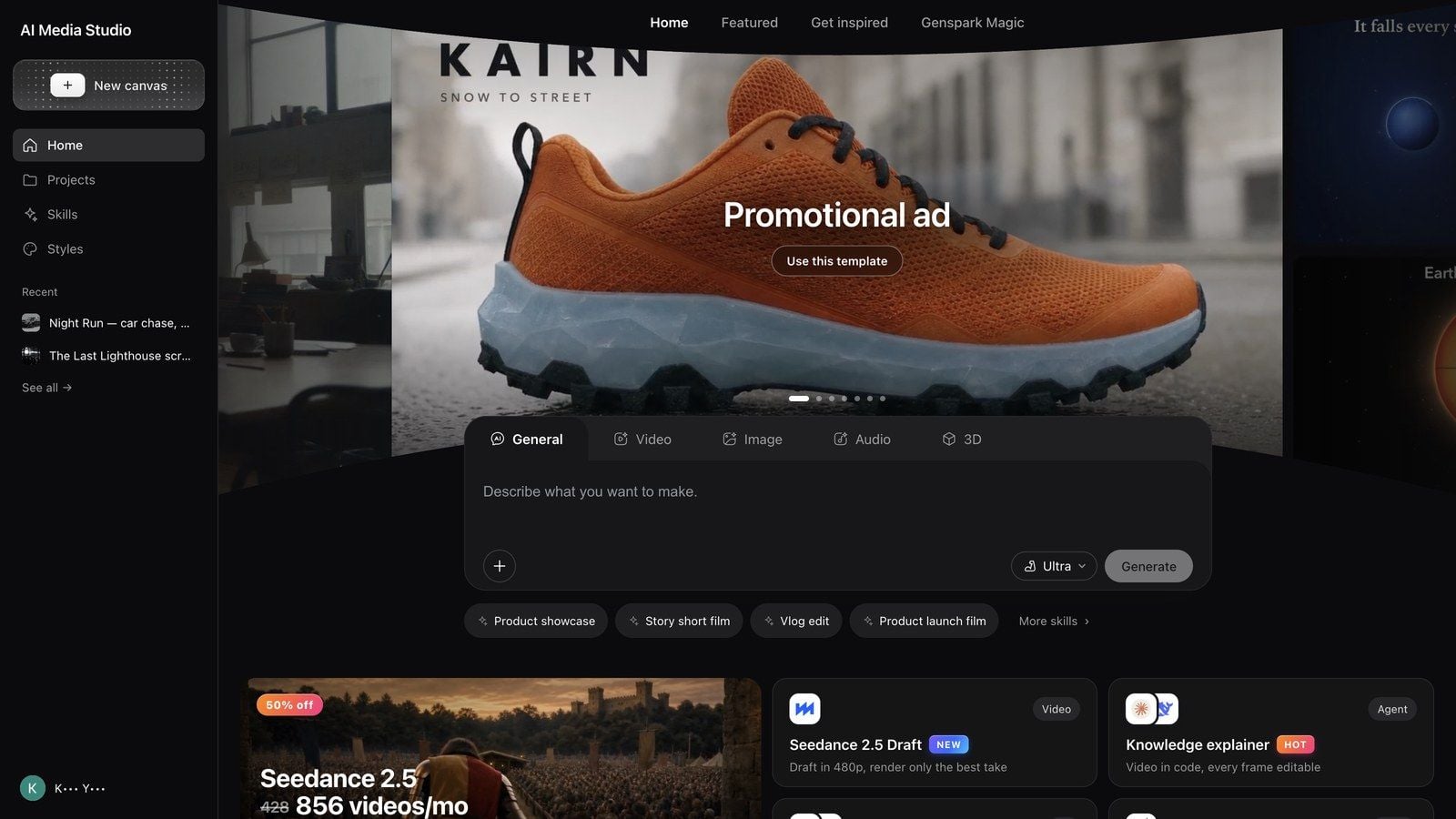
Open Media Studio: genspark.ai/media-studio. The landing page is Home: the composer in the middle, Start here template cards below it, then the Get inspired wall; your own work is under Projects in the left rail.
-
Pick a mode above the composer — General / Video / Image / Audio / 3D. General lets the agent decide the medium; the others focus the composer on that medium.
-
Describe the result, not the buttons. Say who it is for, what it is for, and what must be true at the end.
Make a 15-second vertical ad for these running shoes from this product shot. Keep the shoe exactly as in the photo, move it to a rain-washed city street at dawn, and end on the logo with one call to action.
Turn this onboarding deck into a 60-second explainer for new hires, with on-screen captions and a calm narrator.
This podcast is 40 minutes. Cut it into 5 vertical clips of 30–60 seconds, each opening on its strongest line, with captions.
-
Answer the first round of questions. For most briefs the agent asks a short round first (format, length, language, style, reference material). Answer what you care about and let it default the rest.
-
Work on the board. Results land as nodes beside the conversation. Click a node to get its toolbar; drag from one node's ⊕ handle to another to make it a reference for the next generation. Keep iterating in the same conversation.
-
Deliver. Run it full screen with Present, then download the result or share the project. All the export paths are in Story, assets and collaboration.

What actually happens in your first project
- The agent asks before it spends. You usually get a question card first. Answering it is far cheaper than regenerating a wrong result.
- Story briefs get a Story bible invitation. When a film or a series still has to be invented, and it runs past about 3 minutes, its cast recurs across deliverables or its setting is undecided — and the project is still empty — the agent first offers a card: settle the world, cast and look in a Story Bible (Settle the setting in a Story Bible) or keep going right here (Continue here). See Story, assets and collaboration.
- Generations may arrive as drafts. When the agent is not sure you want to spend the credits, it drafts the request on the board with a Run button — nothing is charged until you press it.
- Big batches ask for confirmation. Ordering many clips or images at once triggers a confirmation; the agent usually suggests smaller batches, which also keeps results more consistent.
- Everything is versioned. A project is a repository: board and assets keep their history, and you can go back.
Tip: if you already know the look you want, attach the references before you send the brief. Two solid references save more credits than ten rounds of "a bit warmer".
Creation modes
| Mode | When to use it | What changes in the composer |
|---|---|---|
| General | Let the agent choose the medium, or mix media in one piece | The agent picks image / video / audio / 3D at every step |
| Video | The deliverable is a film: ad, short, explainer | Video-oriented prompting; direct generations expose model, aspect and duration |
| Image | Stills only: product shots, posters, key visuals, keyframes | Image-oriented prompting and model choice |
| Audio | Voice-over, music, sound for a cut | Audio-oriented prompting; give a script or a description |
| 3D | A product or set you can orbit | 3D-oriented prompting; results land as 3D nodes |
A mode is a starting point, not a cage: the agent still produces other media when the task needs it, and you can switch modes between messages.
Quick skills
The Quick skills chips under the composer prefill a proven brief: Product showcase, Story short film, Vlog edit, Product launch film, Screen demo, Step-by-step tutorial, Event recap, Data story, plus More skills › for the full list. A chip only fills in the text — replace the bracketed parts with your own before you send.
Attaching a skill
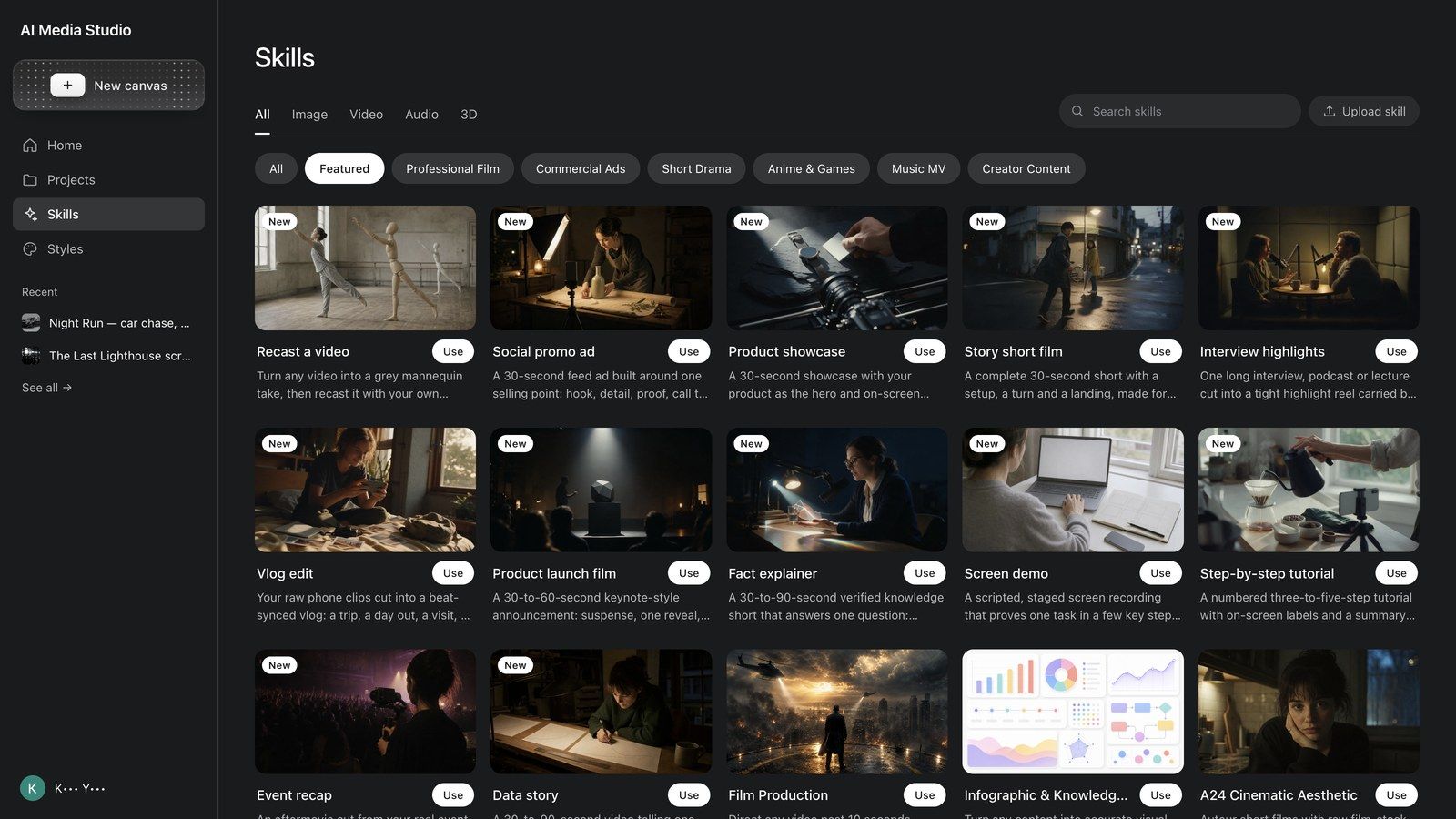
The + menu at the bottom left of the composer has Skills: filter by medium (All / Image / Video / Audio / 3D) and by category (Featured / Short Drama / Professional Film / Commercial Ads / Creator Content / Anime & Games / Music MV / General Skills), press Details to read what a skill does and a sample prompt, and Use to attach it to the conversation. Production skills you will use often: Film Production, Visual Suite, AI Pods (podcasts), Audiobook, Music Single, World Scene; ad skills Product Ad Director, AIGC TVC Director, Brand Commercial Director; casting skills Casting Director and Actor Emotion Performer; and Interactive Film Game for branching films.
Start here
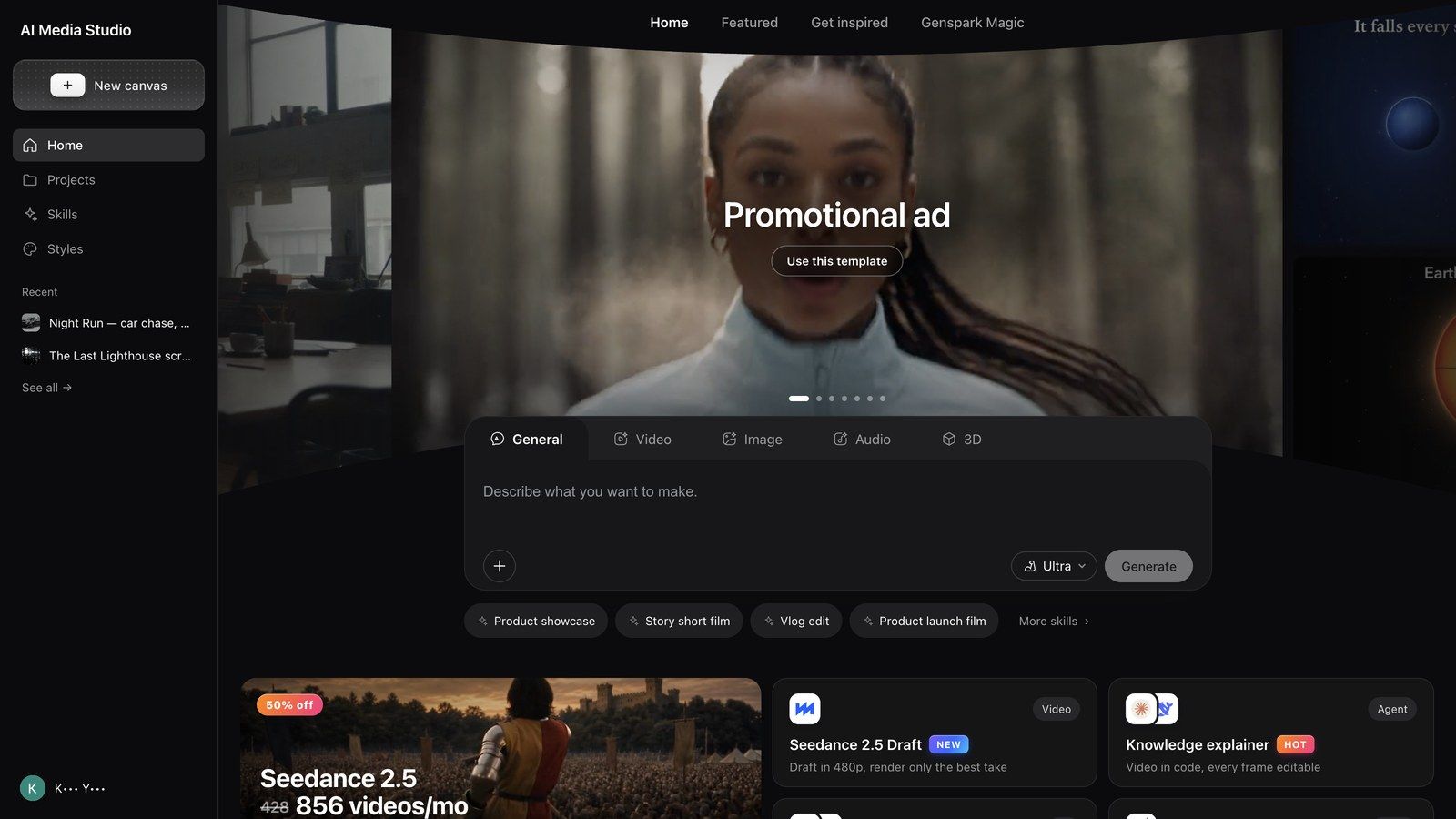
Start here is the fastest way in: seven cards, each a working template with its skill and a prefilled prompt. Open one, replace the bracketed parts, send.
| Card | What it makes | The prompt it prefills |
|---|---|---|
| Promotional ad | One product shot → a finished ad | Make a [15]-second ad for [my product] from this product shot or page link, showing [its key benefit]. End on the logo and one call to action. |
| Remix a hit | Borrow the structure of a video that worked (upload the video to remix) | Remake this video for [my product]. Keep its opening hook, pacing and shot order; change the people, setting and lines to fit. |
| Knowledge explainer | Docs, decks and links, narrated on screen | Turn [this doc, deck or link] into a [60]-second explainer that answers [one question] for [new hires], facts checked, with on-screen visuals and captions. |
| Genspark Magic | Same moves and camera, your cast and place | Same moves and camera as the template, with [my character] in [my place]. |
| Auto clips | One long talk, many short clips (upload the recording) | Cut this talk, podcast or interview into [5] vertical clips, 30 to 60 seconds each. Open every clip on its strongest line and add captions. |
| Stage a scene | Block it in white, shoot it for real | Block out [a two-person chase down a night street] on a white stage, then shoot the final in [rainy neon, handheld] style. |
| Brainstorm | Ideas, hooks and storyboards before you spend | Give me [5] video ideas for [my brand] based on what is trending this week, each with a hook and a one-line story. |
Get inspired
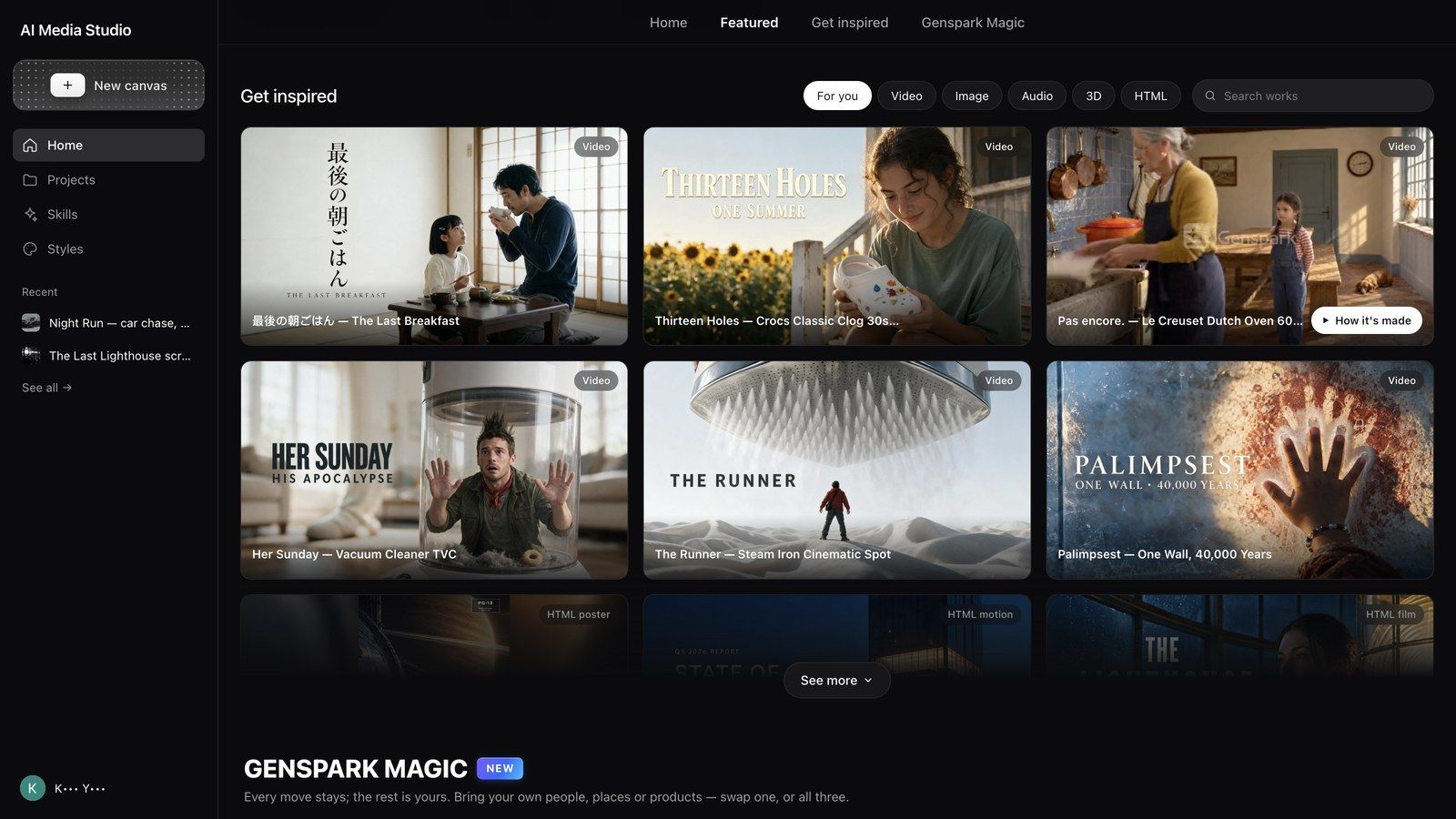
Get inspired shows finished work made in Media Studio, filtered by For you / Video / Image / Audio / 3D / HTML; Search works searches titles.
- Hover a card for How it's made; open the cover for a viewer with Make one like this (puts that piece's prompt into your composer) and How it's made.
- How it's made opens the project's read-only board: every node, connection and asset, plus two buttons — Copy & continue (copies the project into your workspace so you can keep working on it) and View conversation (the original chat).
- Sub-workbenches such as the 3D stage and the layer editor do not open on a read-only board; press Copy & continue first.
Before writing your own brief, calibrate here — copying something that works and changing it is usually faster than describing from zero. Every recipe in this guide links to the matching example.
Choosing a tier
The tier selector in the composer decides which model plans your work. It does not change the price of the media models themselves.
| Tier | What the product says | What to know |
|---|---|---|
| Standard (default) | DeepSeek V4.1 Flash — fast, economical quality for everyday media generation and image design tasks | Planning on this tier uses your weekly free quota |
| Ultra | Claude Opus 5.5 — dependable planning for complex shows and multi-step media work. Uses more credits | Multi-step productions where planning quality decides the result |
| Mega | Claude Fable 5.1 — Anthropic's most capable model, at twice the credits of Ultra. Recommended for video productions over 30 seconds | Requires AI Data Retention to be on (Settings → Data Controls) |
Switch any time; the change affects only the next message, not work already done.
Tip: start on Standard. Move up only when a piece keeps being "planned wrong" (shot order, lost continuity); a single image that looks off is usually a prompt or reference problem.
How costs work
The quota bar above the composer says it plainly: LLM and images use free quota. Video and audio use credits. Keeping those two apart explains almost every "why was I charged".
- On Standard, planning and default-quality images come out of the weekly free quota: the agent's thinking is not charged, and the default image route is not charged.
- Video, audio and 3D always use credits, whatever the tier. Price depends on model, resolution, duration and count; a configuration node shows the estimate (for example
~200) before you send. - Leaving the defaults leaves the free quota: naming a specific image model, or choosing high quality / 4K, is charged like any other generation.
- Ultra and Mega planning always uses credits; those tiers do not draw on the free quota.
- A draft costs nothing until you press Run. A draft only prepares the request; pressing Run generates and charges.
- Failures are refunded. A failed generation shows No charge and the credits come back; a successful one is charged even if you do not use it.
- Where to look: Credit Usage in your account attributes spend by product; Media Studio spend is listed as Media Studio.
When the quota is used up you can carry on with credits or wait for the reset — the bar tells you which one you are spending.
Five habits that save credits without lowering quality:
- Draft on Standard; move up only the piece that genuinely needs stronger planning.
- Explore styles with the default image model and quality; raise quality only for the pick.
- Test with one short clip, then use Smart extend for the long version.
- Use reference connections instead of rewriting the prompt.
- Approve a storyboard (Grid templates → 25-cell storyboard) or keyframes before generating video, and build long pieces in segments — reshooting one shot costs one shot, not the whole film.
Managing projects
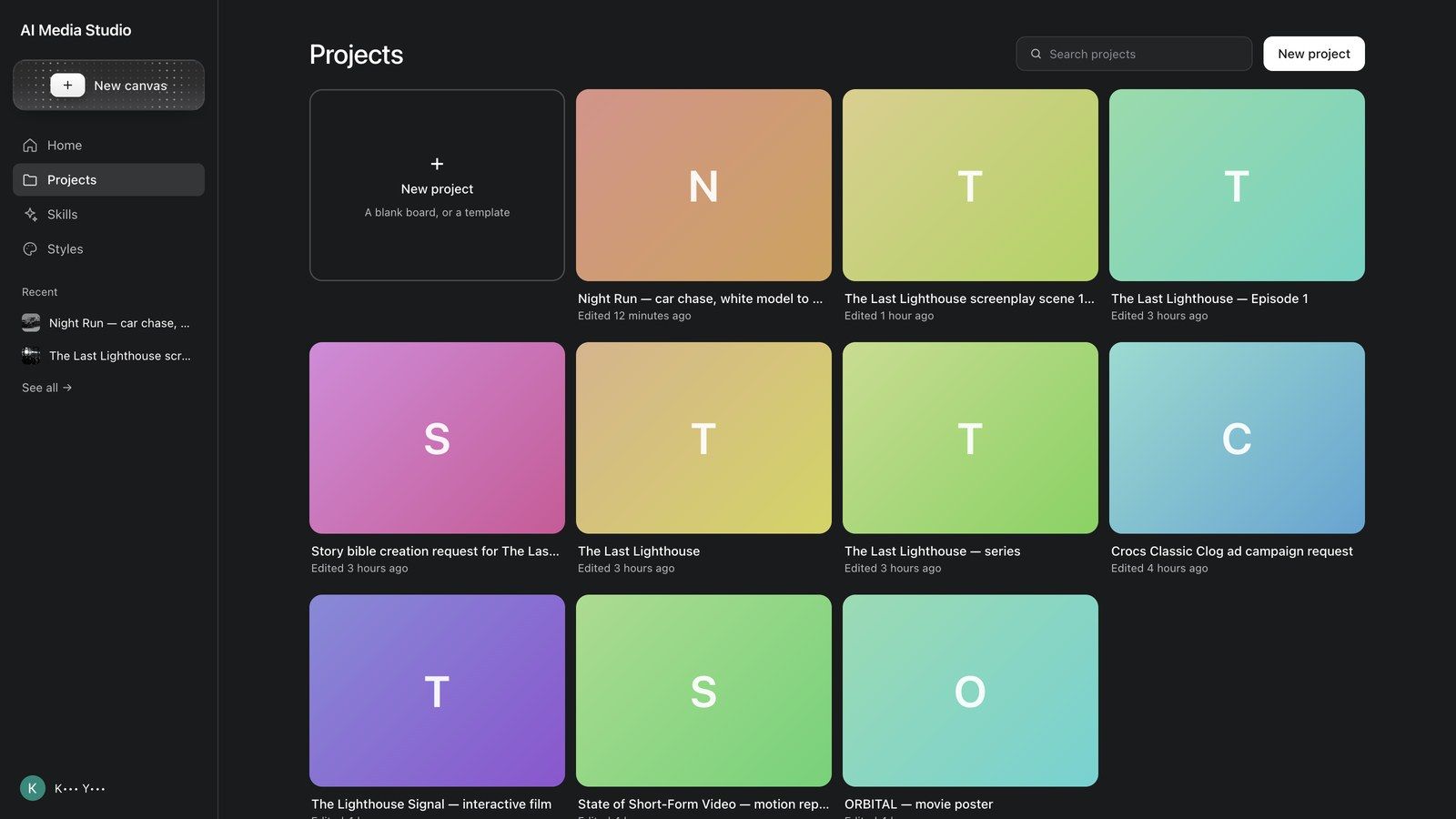
Projects lists every board you have made, most recent first.
- New project ("A blank board, or a template") starts an empty board or a template; + New in the left rail does the same from anywhere.
- Search projects filters by name.
- The ··· on a card: Rename, Set cover (opens Set cover image to pick one of the project's assets, or Reset to automatic), Delete (asks "Delete this project? This cannot be undone.").
- Recent in the left rail is the shortcut list; See all → opens Projects.
FAQ
Is Media Studio the old AI Video / AI Audio / AI Music?
Those tools have been folded into Media Studio — the same capabilities, rebuilt as one board with built-in production skills. The old pages still open and the projects you made there stay there; only projects created in Media Studio appear under Projects.
Do I have to pick a mode before typing?
No. General lets the agent decide the medium at each step. Pick a mode only when you already know the medium and want the composer focused on it.
Can I come back and keep editing a project?
Yes — open it from Projects: conversation, board and assets are restored. A project can hold several boards (the menu next to the board tab → New board) to keep versions apart.
Can I use my own product shots and videos?
Yes. Attach with the composer's +, drag files onto the board, or use Add node → Upload on the board's right-hand dock; uploads become nodes you can reference.
Why does the agent ask so many questions up front?
One clear round is cheaper than regenerating. Answer the few that matter and send; the rest default.
Why am I stopped when ordering many clips at once?
Large batches ask for confirmation on purpose — every clip costs credits. Smaller batches usually stay more consistent, too.
Does Media Studio talk to Genspark Design?
In one direction today: Design's file browser offers Edit in Media Studio, which packs the design's assets and imports them; once in, they are ordinary nodes.
Can I use what I make commercially?
You own what you create, subject to the model providers' terms and your plan. For brand work, check the licence notes on the model card before generating in bulk.
Troubleshooting
The send button is greyed out
The composer is empty, a mode panel has an unfinished field, or a generation is already running. Type a few words or attach a file.
A generation failed or came back blank
The node shows Generation failed and No charge; press Retry. If it keeps failing: shorten the prompt, attach a reference, or split the job (generate a still first, then animate it).
I cannot find an earlier project
Use Search projects under Projects, then check Recent in the left rail. Projects made in the old AI Video / AI Audio / AI Music pages are listed in those tools, not here.
The board is stuck or not editable
A generation may be holding a node, or a draft is waiting for Run. Press the refresh icon at the top right of the board; unsaved board changes are kept.
"Media Studio is disabled for your organization"
Your workspace admin has turned the feature off. Ask them to enable Media Studio in the organisation's feature settings — it is an admin switch, not a plan limit. The 3D director stage and the HTML Studios use the same switch.