AI Diagram Generator, from text or code to a finished diagram.
Describe what you want to show, or paste in code. The AI diagram generator picks the right diagram type, lays out the shapes, and connects them, ready for you to edit and export.
What Will You Diagram?

Technical Diagrams
ER diagrams, UML, network maps, system flows. Describe the system or paste your code, and the AI diagram maker picks the right notation, lays out the shapes, and connects them. Built for documentation that has to stay accurate.

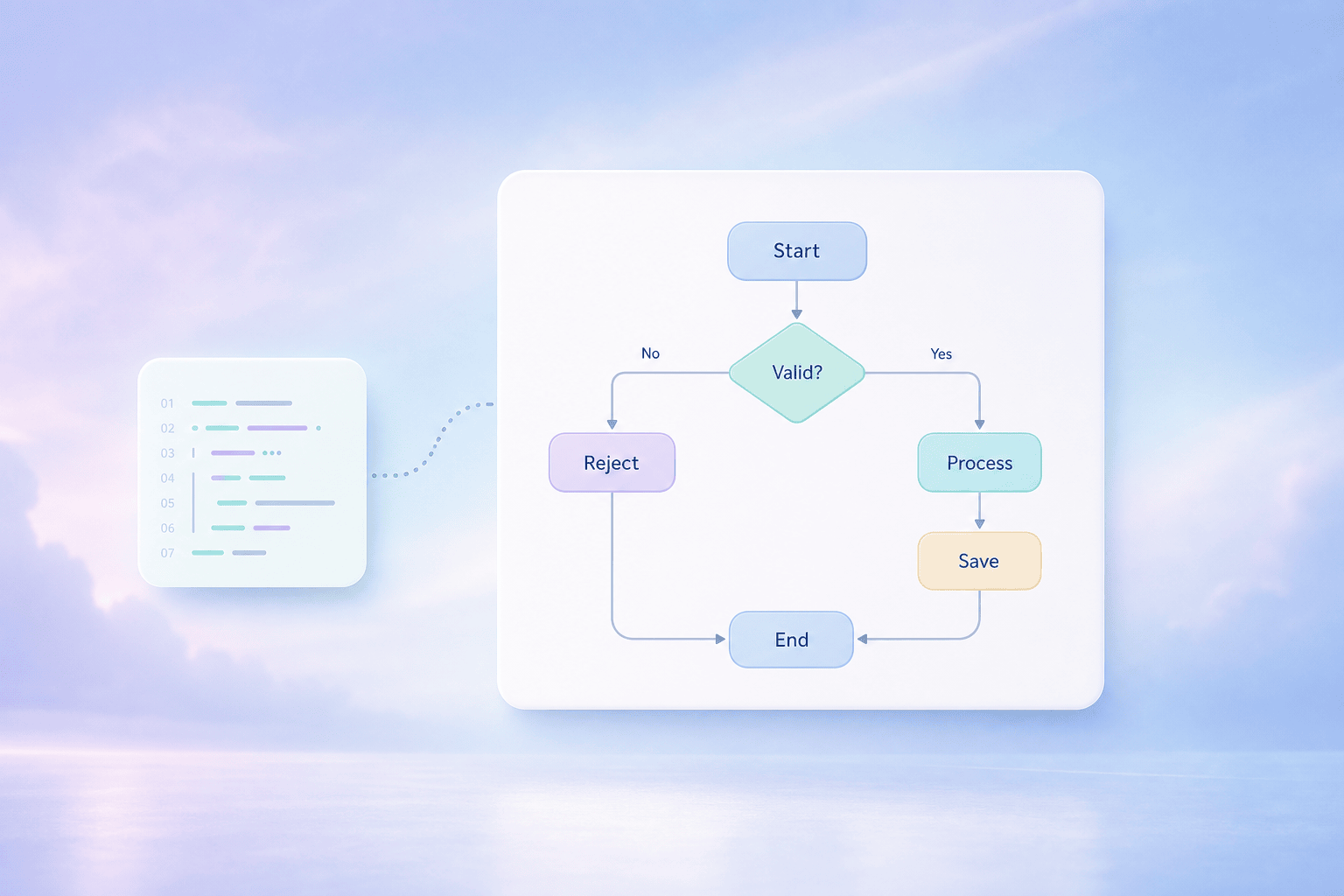
Text or Code to Diagram
Write a description in plain words, or paste in code, and Genspark figures out the structure and draws it. No shape library, no manual layout. You describe the relationships and the diagram appears.
Why Genspark for Diagrams
It picks the diagram type
You don't need to know whether you want a flowchart, an ER diagram, or a network map. Describe what you're showing and Genspark chooses the notation that fits, then draws it correctly.
Code in, diagram out
Paste a schema, a class file, or a script. Genspark reads the structure and turns it into the matching diagram: UML from classes, an ER diagram from a schema, a flow from logic.
Editable, not a flat image
Every shape and connector stays live. Rename a node, move it, change a relationship, or ask the AI to extend the diagram, and the layout adjusts to keep it clean.
How the AI Diagram Generator Works
Describe it, or paste code
To create a diagram, type what you want to show in plain language, or paste in a schema or a script. You don't have to name the diagram type. The AI works that out.
Review the diagram
Genspark picks the notation, lays out the shapes, and connects them. You see the whole diagram before you touch anything.
Edit and export
Rename nodes, adjust connections, or ask for another branch. When it's right, export the diagram or drop it into a doc or a slide.
Frequently Asked Questions
Can AI generate a diagram?
Yes. Describe what you want to show, or paste in code, and Genspark picks the right diagram type, lays out the shapes, and connects them. You get a clean diagram you can edit and export: ER, UML, network, venn, mind map, and more.
What kinds of diagrams can it make?
Genspark can make a diagram for anything that renders from structure: flowcharts, ER diagrams, UML, network diagrams, sequence diagrams, mind maps, venn diagrams, and trees. It doesn't do engineering drawings like circuit or wiring diagrams.
Can I turn text into a diagram?
Yes. Write a description in plain words, like the entities, the steps, the relationships, and the AI diagram generator works out the structure and draws it. You don't place or connect anything by hand.
Can it turn code into a diagram?
Yes. Paste a database schema, a class file, or a script, and Genspark reads the structure and draws the matching diagram. It's a quick way to document a codebase or understand one you've inherited.
Can I edit the diagram after it's generated?
Yes. Every shape and connector stays editable. Rename a node, move it, change a relationship, or ask the AI to extend the diagram, and the layout adjusts to stay readable.
What's the difference between this and the flowchart generator?
A flowchart is one kind of diagram. The flowchart generator focuses on processes, the steps and decisions. This page is the general one: it covers ER diagrams, UML, network maps, venn diagrams, mind maps, and more, on top of flowcharts.