AI Flowchart Generator, from a description to a clean flow chart.
Describe a process in plain words, or paste in code. The AI flowchart generator maps out the steps, draws the boxes and arrows, and gives you a flow chart you can edit and export.
What Will You Map?
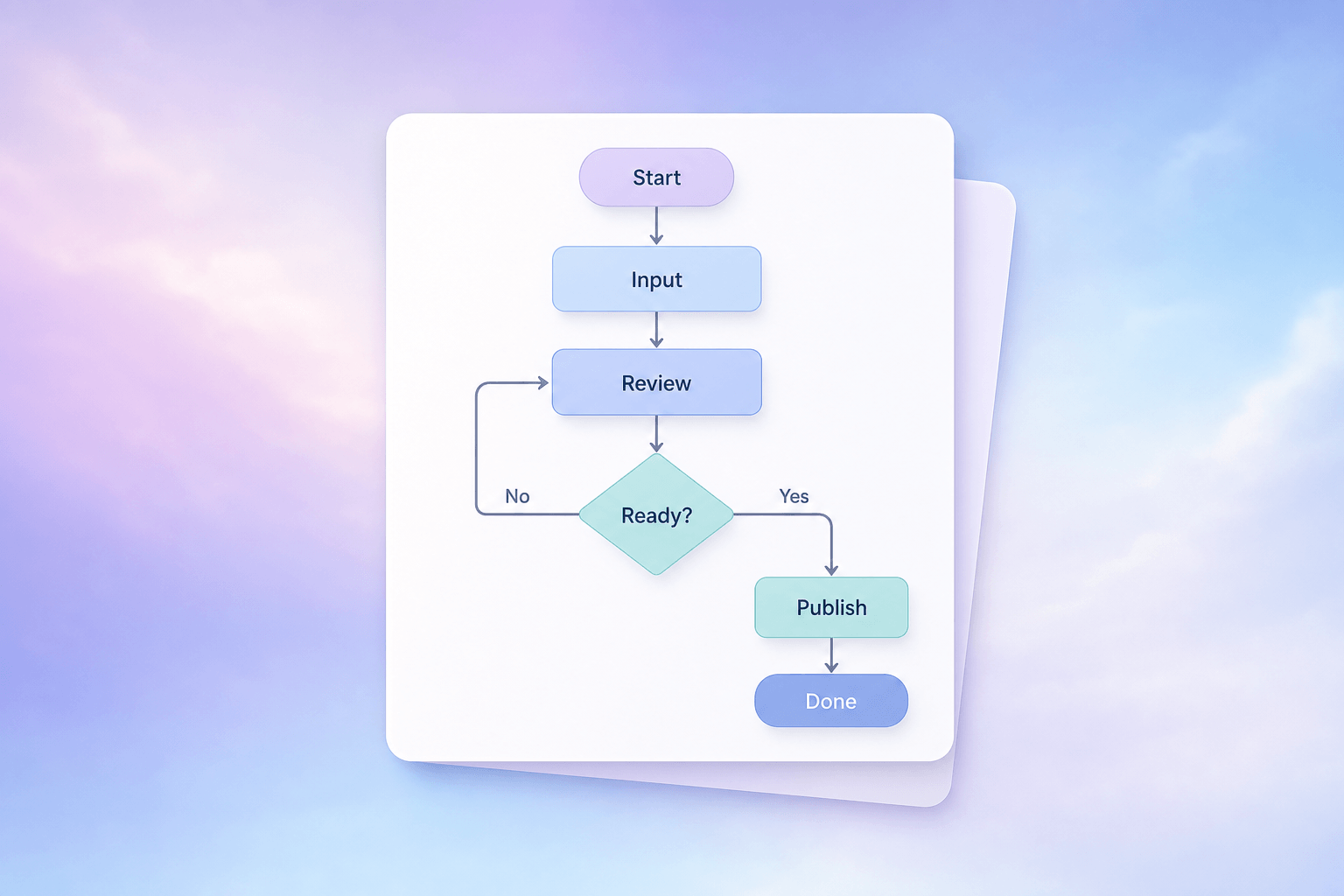
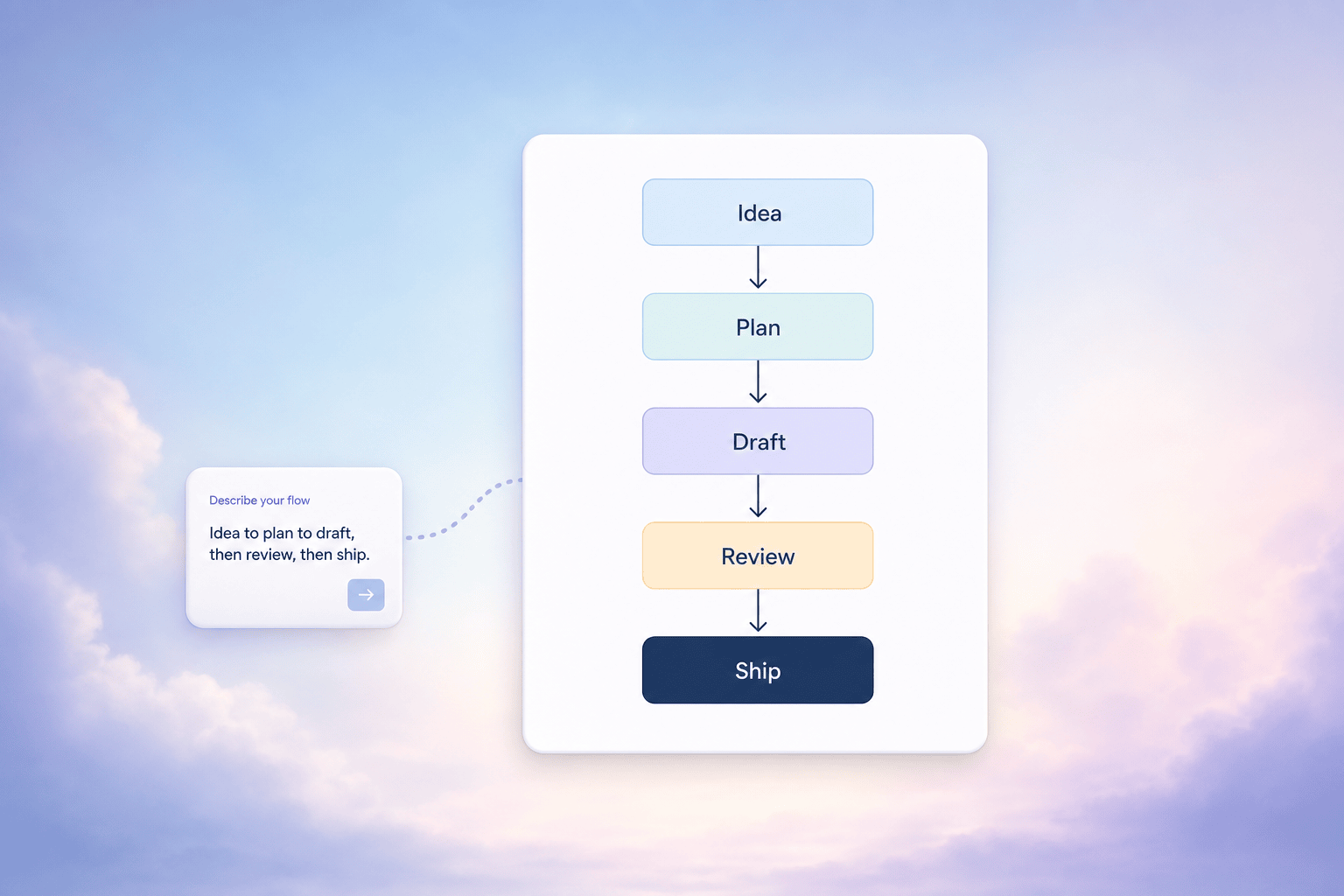
Text to Flowchart
You don't have to drag a single box. Write the steps the way you'd explain them out loud, and the AI flowchart maker turns that text into a structured flow chart, picks the layout, and labels every arrow.
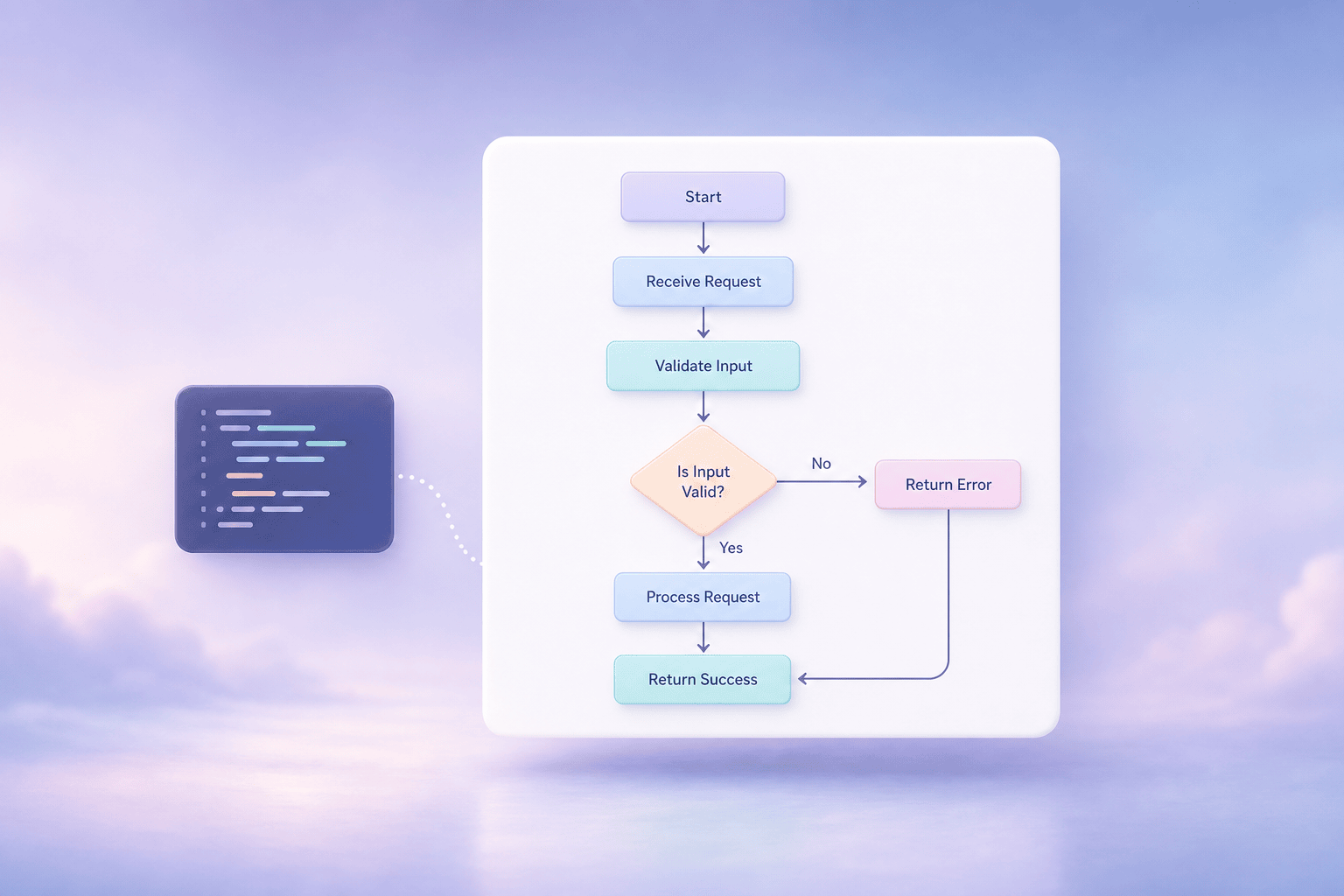
Code to Flowchart
Paste in a function or a script and the AI flowchart generator traces the logic, the branches, the loops, the return points, and draws it as a flowchart. It's a fast way to document or review code you didn't write.
Why Genspark for Flowcharts
Start from text, not a blank canvas
Most flowchart makers and flow chart creators hand you an empty grid and a shape library. This one starts from a description. Type what happens, in order, and the AI draws the boxes, the arrows, and the decision diamonds for you.
Every box stays editable
The flow chart isn't a flat picture. Click any box to rename it, drag it, re-route an arrow, or ask the AI to add a branch. The layout re-flows so it stays readable.
Export into your docs and decks
Drop the finished flowchart into a slide, into a document, or share it as an image. It also works as a section inside a larger Genspark project.
How the AI Flowchart Generator Works
Describe the process
Type the steps in plain language, or paste in code. Mention the decision points if you know them, and the AI draws them as branches.
Review the flow chart
Genspark maps the steps, picks a layout, and draws the boxes and arrows. You see the whole flowchart before you start editing.
Edit and export
Rename boxes, move things around, or ask the AI to add a step. When it reads right, export the flow chart or drop it straight into a doc.
Frequently Asked Questions
Can AI generate a flowchart?
Yes. Describe a process in plain words, or paste in code, and Genspark maps out the steps, adds the decision points, and draws a clean flow chart with boxes and arrows. You review it, edit anything, and export.
How do I make a flow chart from text?
Type the steps into the box at the top of this page, in the order they happen. The AI flowchart generator reads the description, works out the structure, and draws the chart. You don't place a single box by hand.
Can it turn code into a flowchart?
Yes. Paste a function or a script and Genspark traces the logic, the conditionals, the loops, the return points, and draws it as a flowchart. It's useful for documenting code or understanding something you didn't write.
Can I edit the flowchart after it's generated?
Yes. Every box and arrow stays editable. Rename a step, move it, re-route a connector, or ask the AI to add a branch, and the layout re-flows to stay readable.
What's the difference between a flowchart and a flow diagram?
They're the same thing. A flowchart, a flow chart, a flow diagram, and a workflow diagram all describe a process as boxes connected by arrows. Genspark builds all of them the same way, so you can create a flowchart from a text description or from code.
Can I export the flow chart?
Yes. Export the flowchart as an image, or drop it into a slide or a document. It also lives as an editable section inside a larger Genspark project, so you can keep refining it alongside the rest of your work.